Message Moderation
Learn how to analyze attributed message deletions by time, moderator, and affected member.
The Message Moderation report tracks message deletions performed by a known moderator. It excludes self-deletes and deletions that cannot be attributed to a moderator.
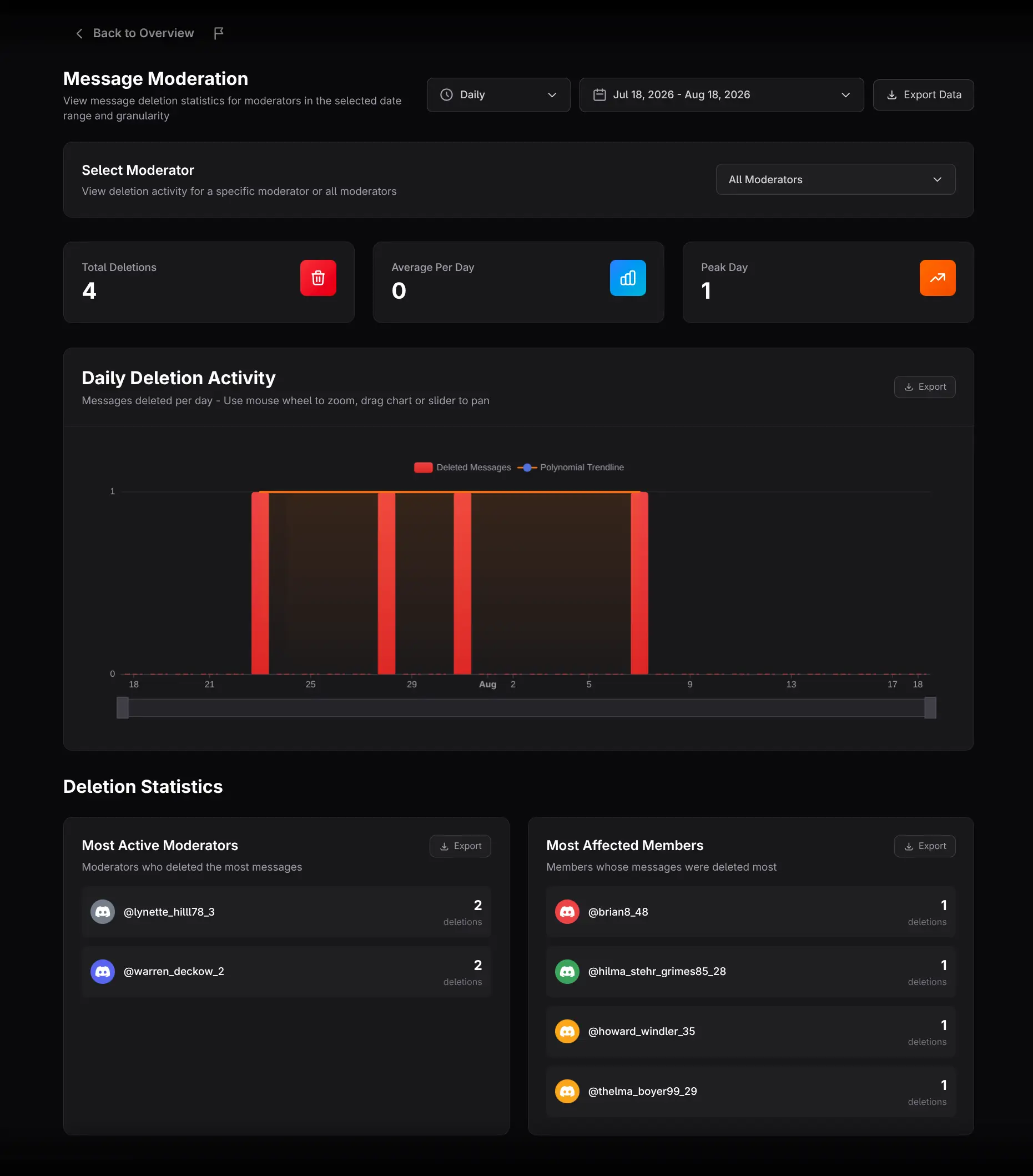
Select the scope
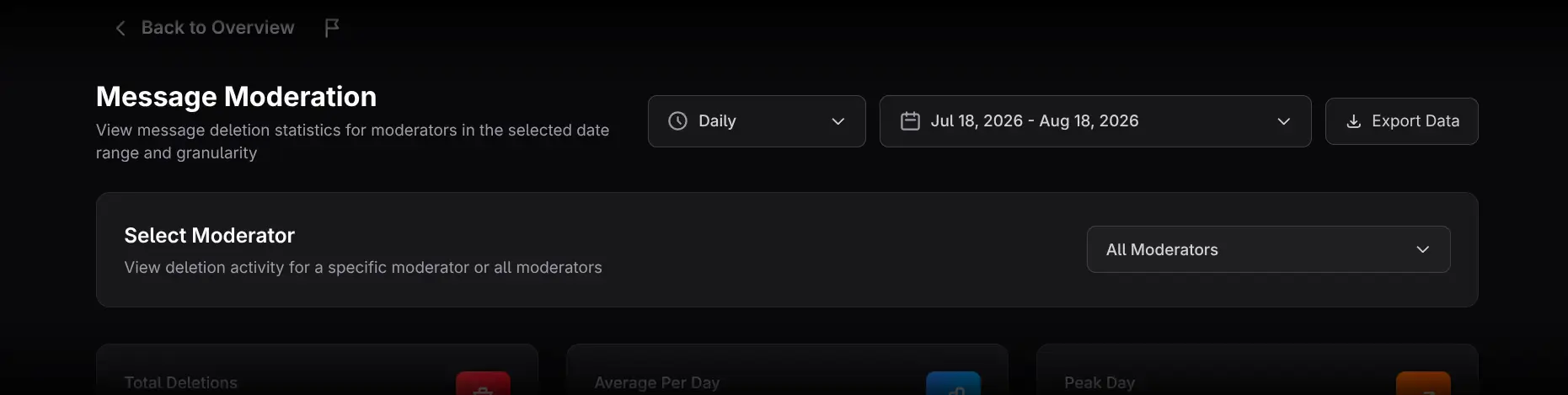
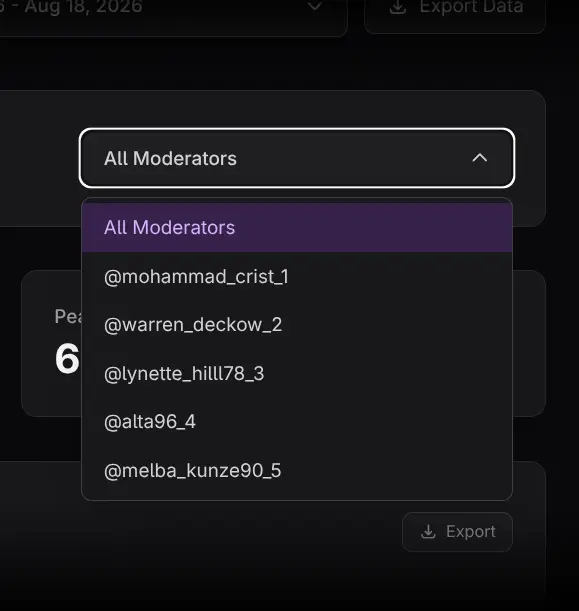
Choose the date range and time granularity, then use Select Moderator for the full team or one moderator. This filter affects all metrics, charts, leaderboards, and exports.
Read the summary cards

- Total Deletions shows attributed moderator deletions. Click it to open the event list.
- Average Per Day normalizes deletion activity by day.
- Peak Day identifies the highest-deletion day.
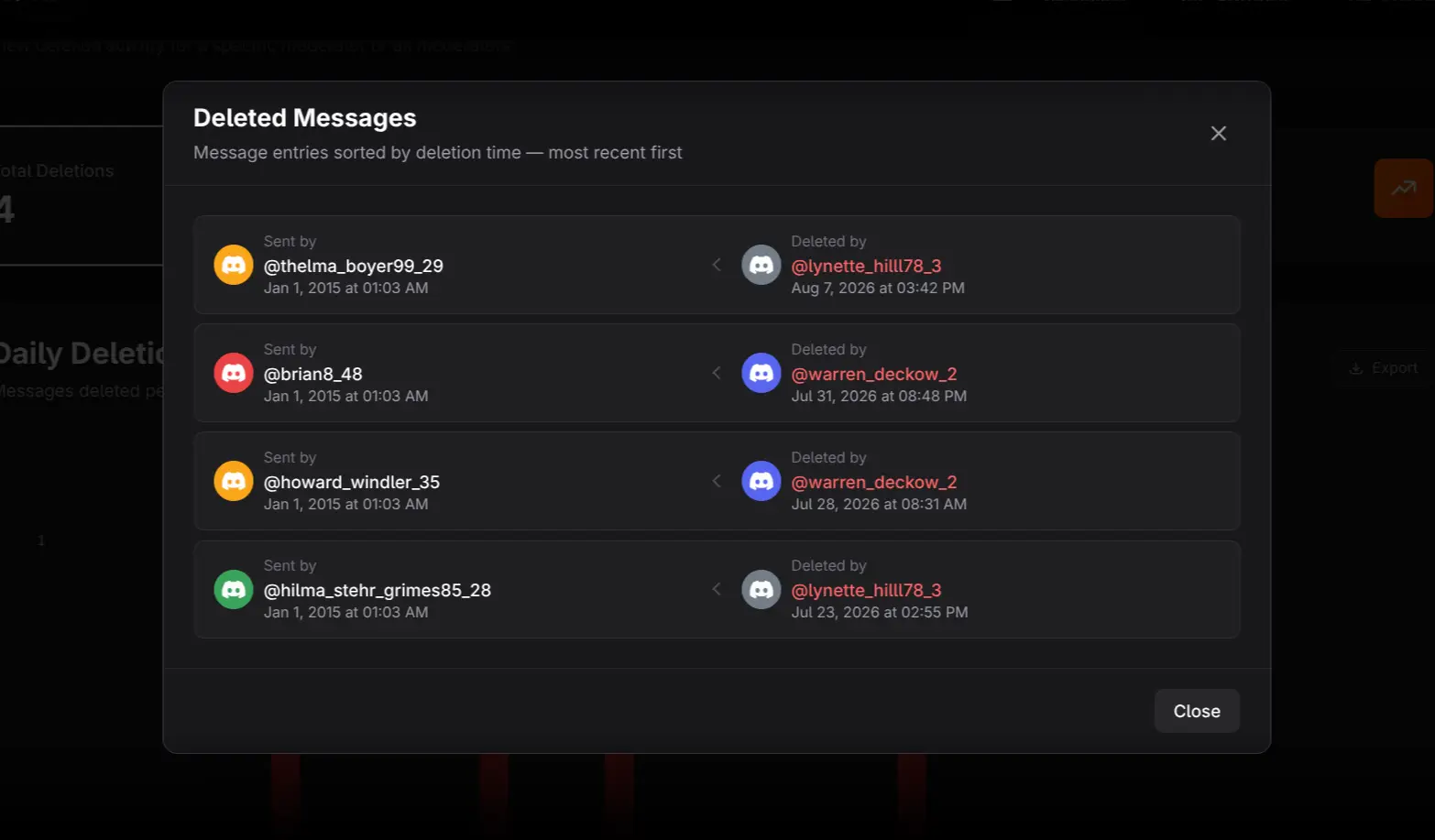
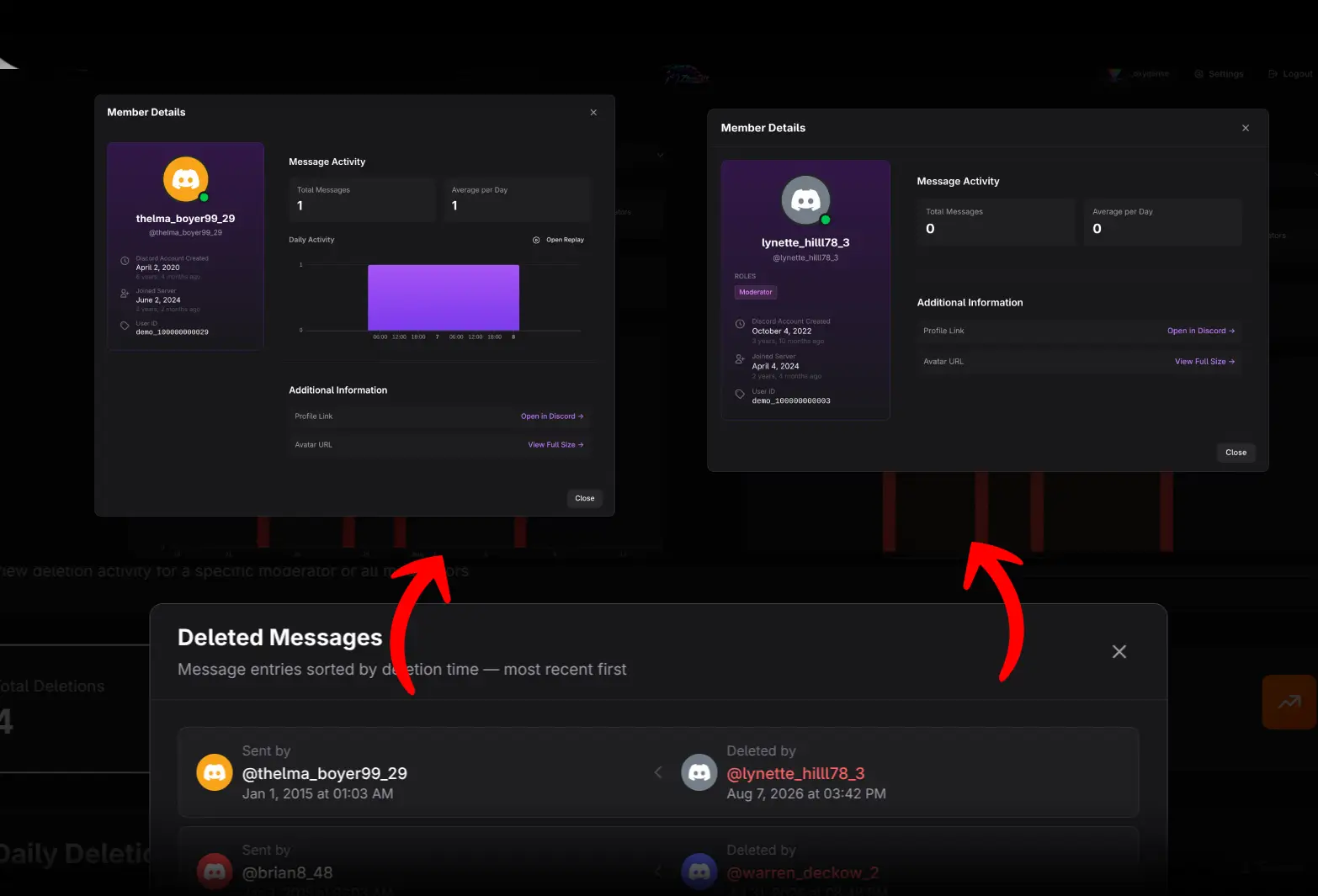
The deletion list shows two identities for each event:
- The member who sent the deleted message and its original send time.
- The moderator who deleted it and the deletion time.
Click either identity to open that person's Member Details. The original send time is derived from the Discord message ID.
Analyze Daily Deletion Activity
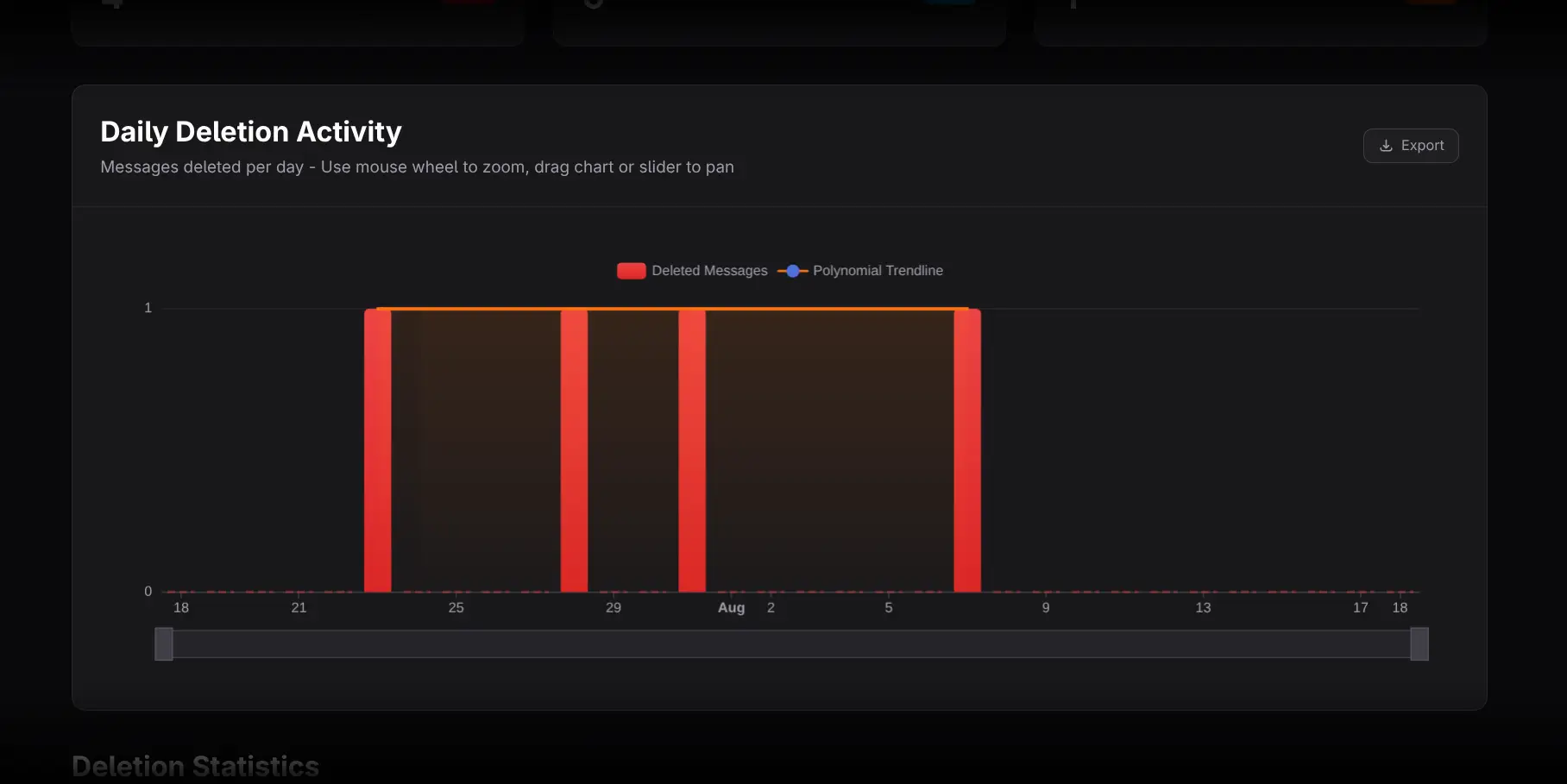
Use the chart to find spikes, sustained change, or long quiet periods.
- Hover for period values.
- Zoom or pan to isolate an interval.
- Filter to one moderator when a team-level spike needs attribution.
- Open Total Deletions to inspect the affected members and timing.
Review leaderboards
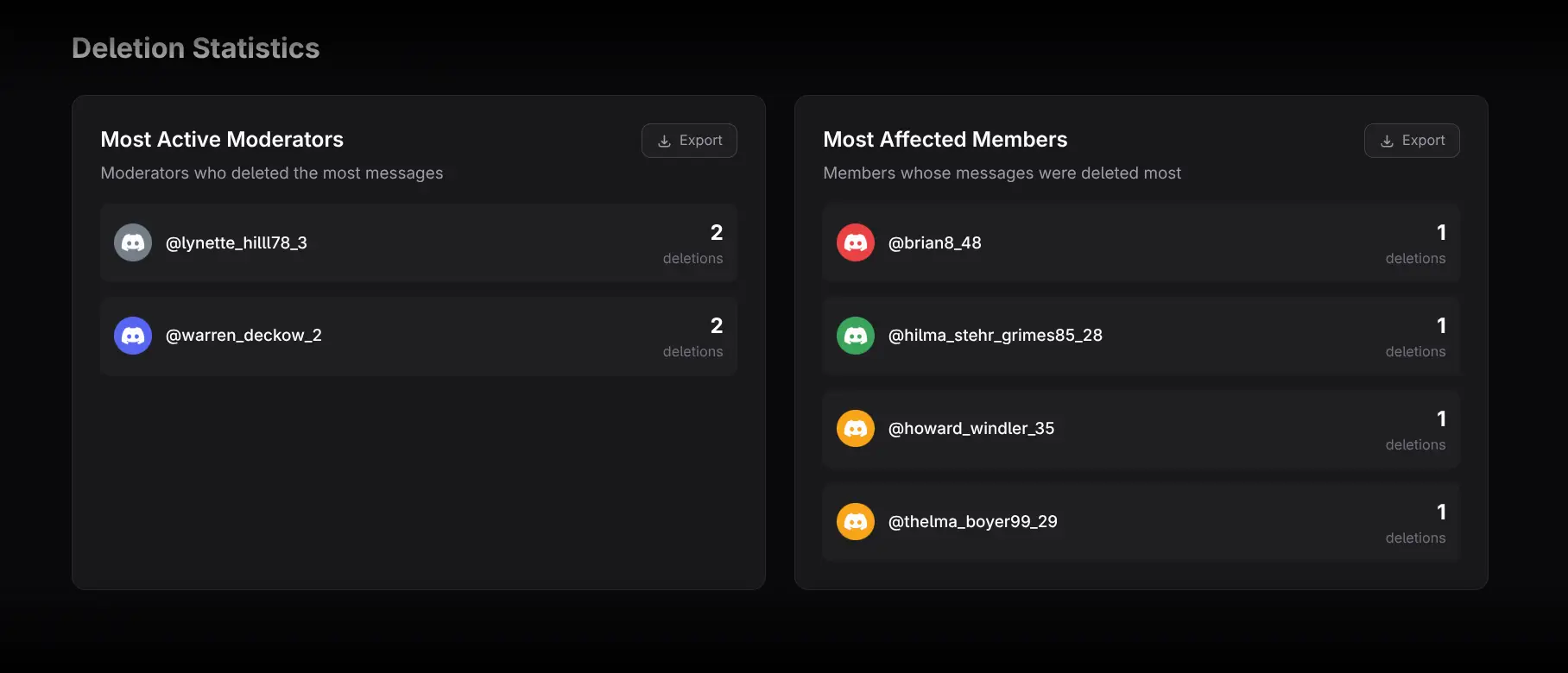
- Most Active Moderators ranks moderators by attributed deletion count.
- Most Affected Members ranks members whose messages were deleted most often.
The second list can identify repeated moderation contact, but it does not show message content or prove misconduct.
Practical workflows
Audit a deletion spike
Set a narrow range around the spike, review the event list, and compare the acting moderators and affected members. Check whether the spike coincides with message-volume growth or another server event.
Detect concentrated impact
Compare Total Deletions with Most Affected Members. Repeated deletions involving one member may warrant a policy or case review outside the analytics report.
Balance moderator comparisons
Use individual filters and schedule context. A moderator assigned to high-risk channels will naturally generate more deletions.
Exporting and cautions
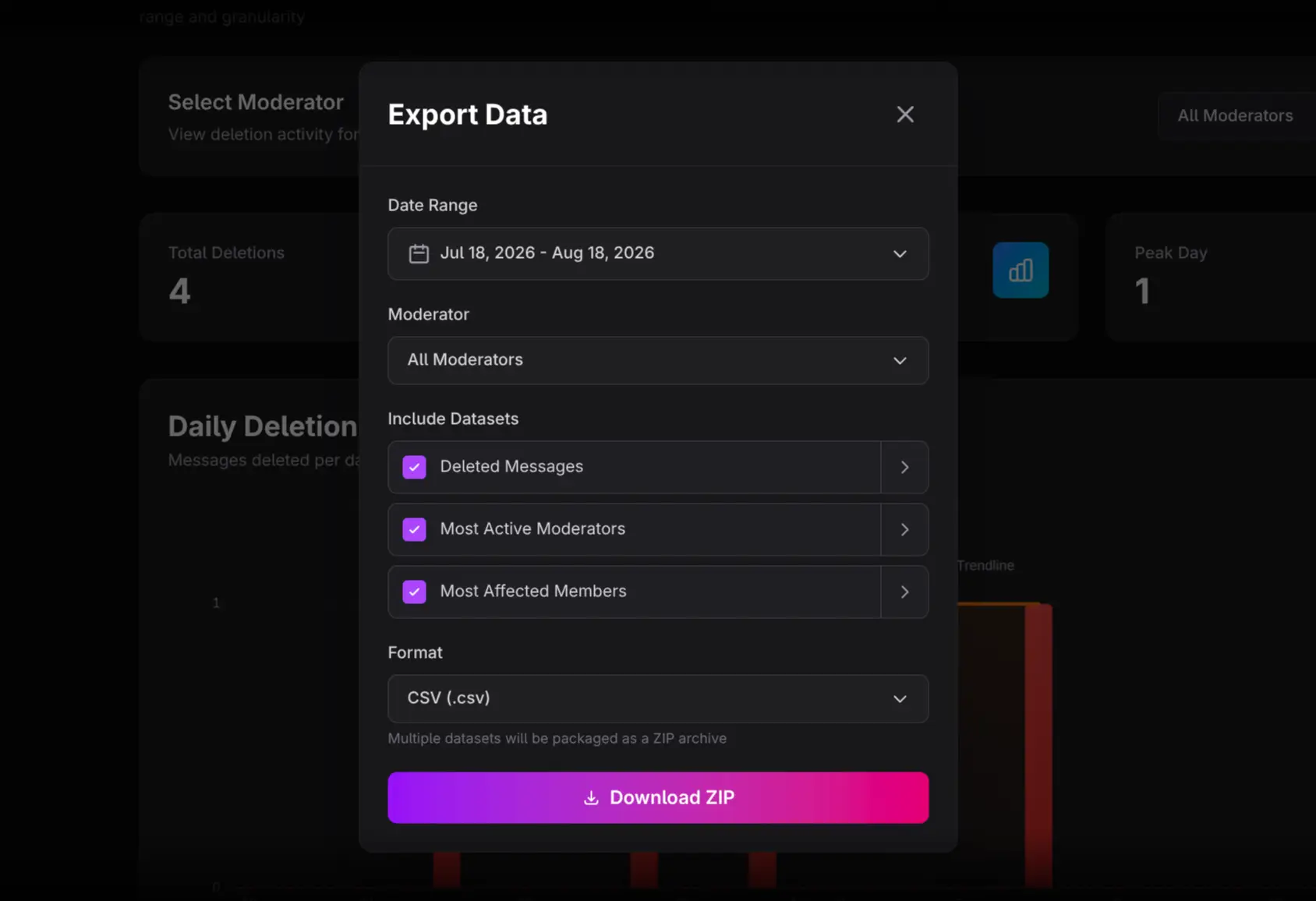
Use Export Data or chart-level Export. Selected-moderator filtering applies to exports.
- Only deletions with a known moderator are included.
- Message content is not stored or shown.
- Deletion count alone cannot determine correctness or fairness.
- Unlike the other moderator pages, this page may not display the same full-page premium lock overlay even though access is still plan-checked.