Bans & Unbans
Learn how to analyze ban and unban actions by time, affected member, and moderator.
The Bans & Unbans report tracks who was banned or unbanned, which moderator performed the action, and when it occurred.
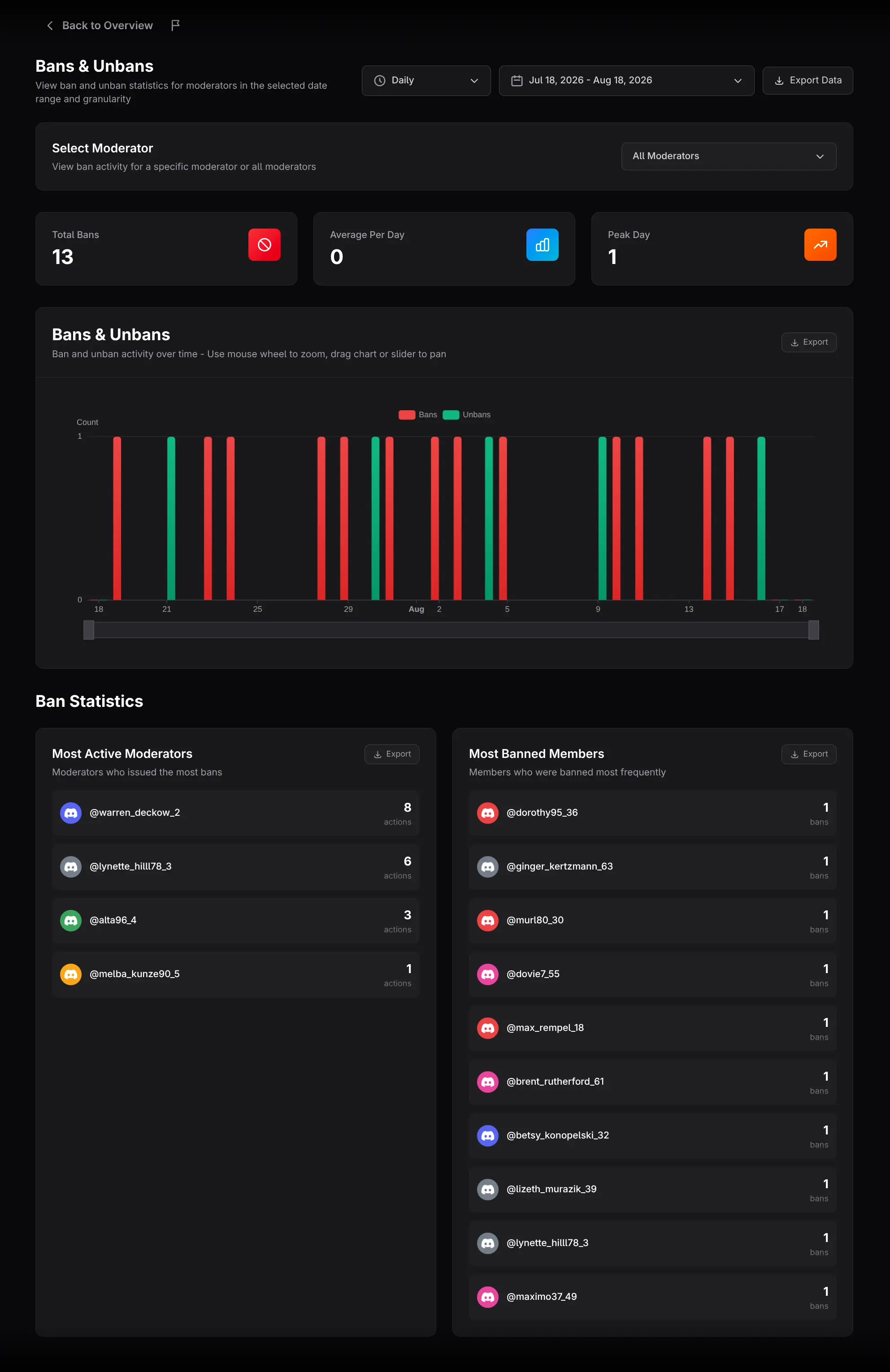
Select the scope
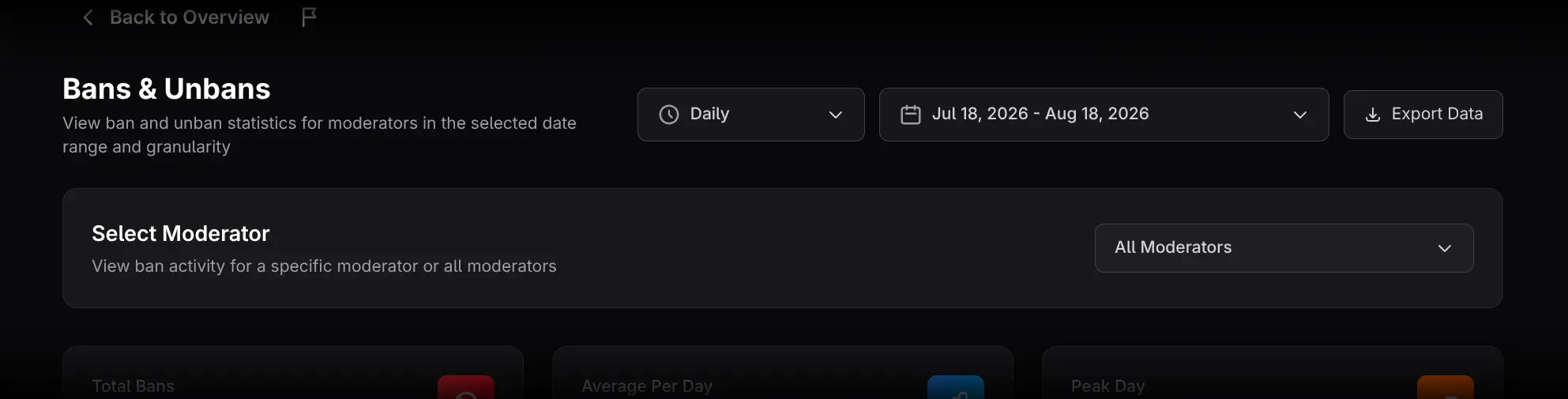
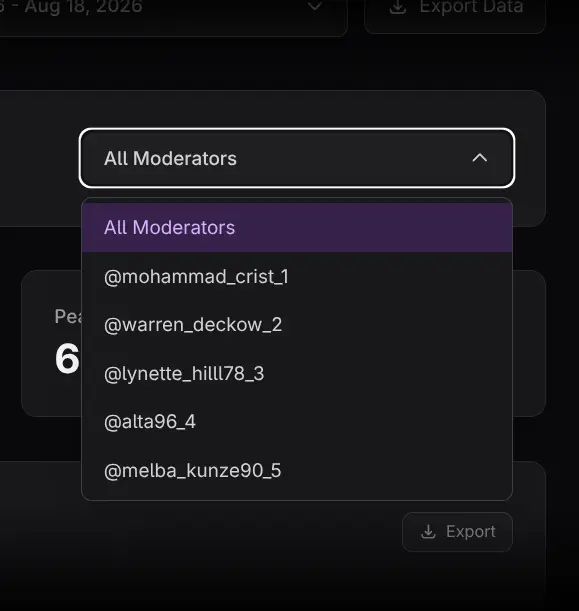
Choose the date range and time granularity, then use Select Moderator to analyze the entire team or one moderator. The filter applies across the page and to exports.
Read the summary cards
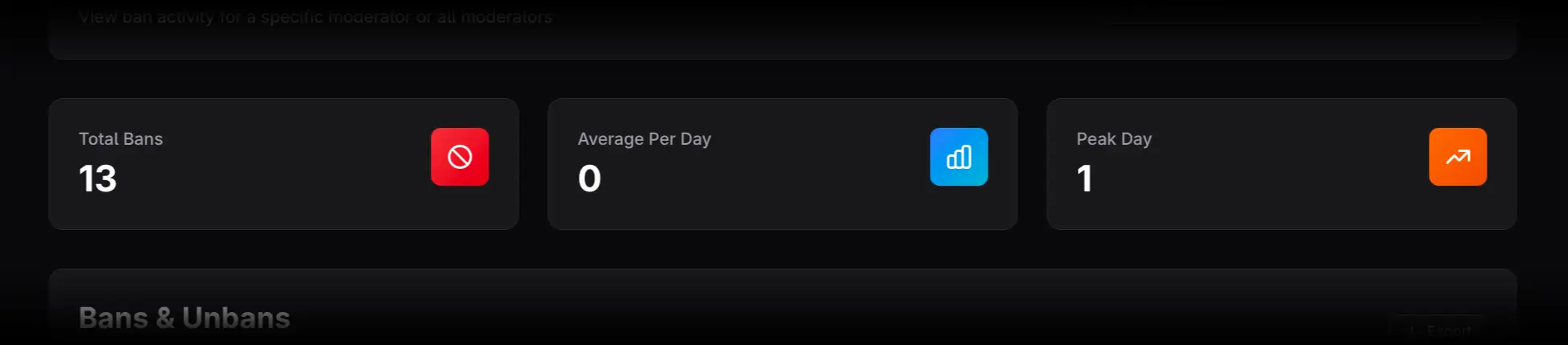
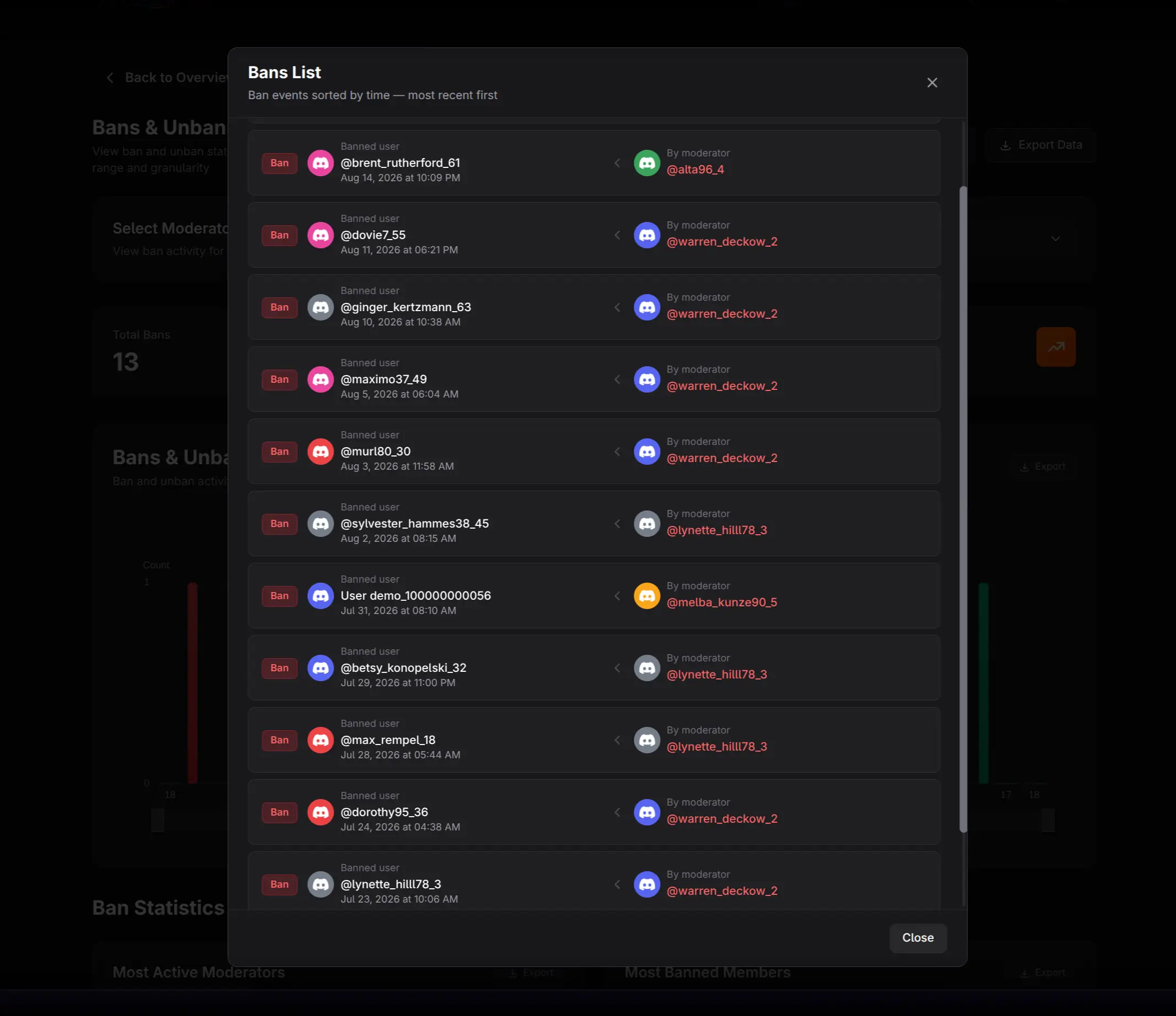
- Total Bans opens a mixed chronological list of ban and unban actions.
- Average Per Day shows normalized action volume.
- Peak Day identifies the period with the most actions.
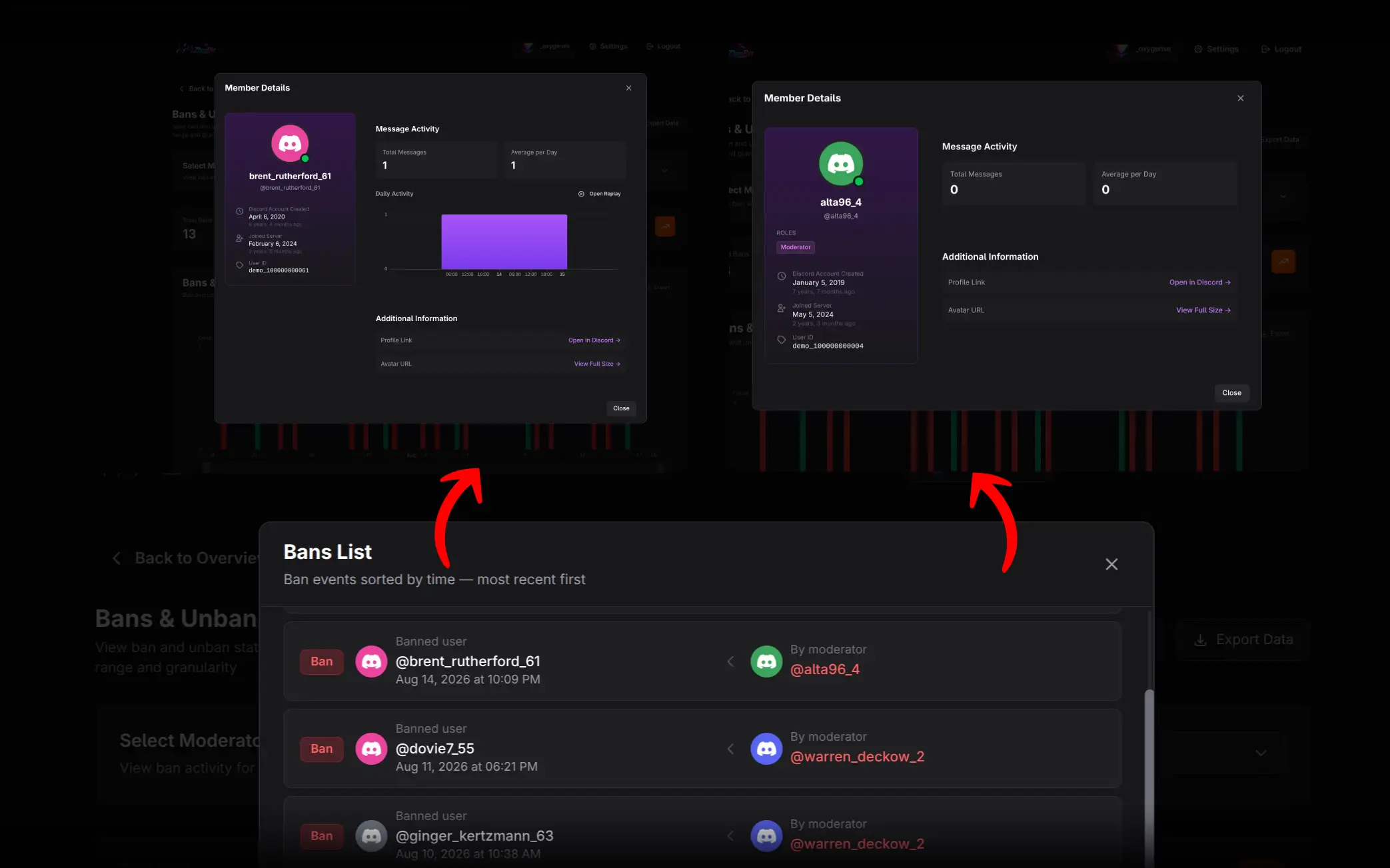
In the event list, bans are marked red and unbans green. Click the affected member or acting moderator to open Member Details.
Analyze the Bans & Unbans chart
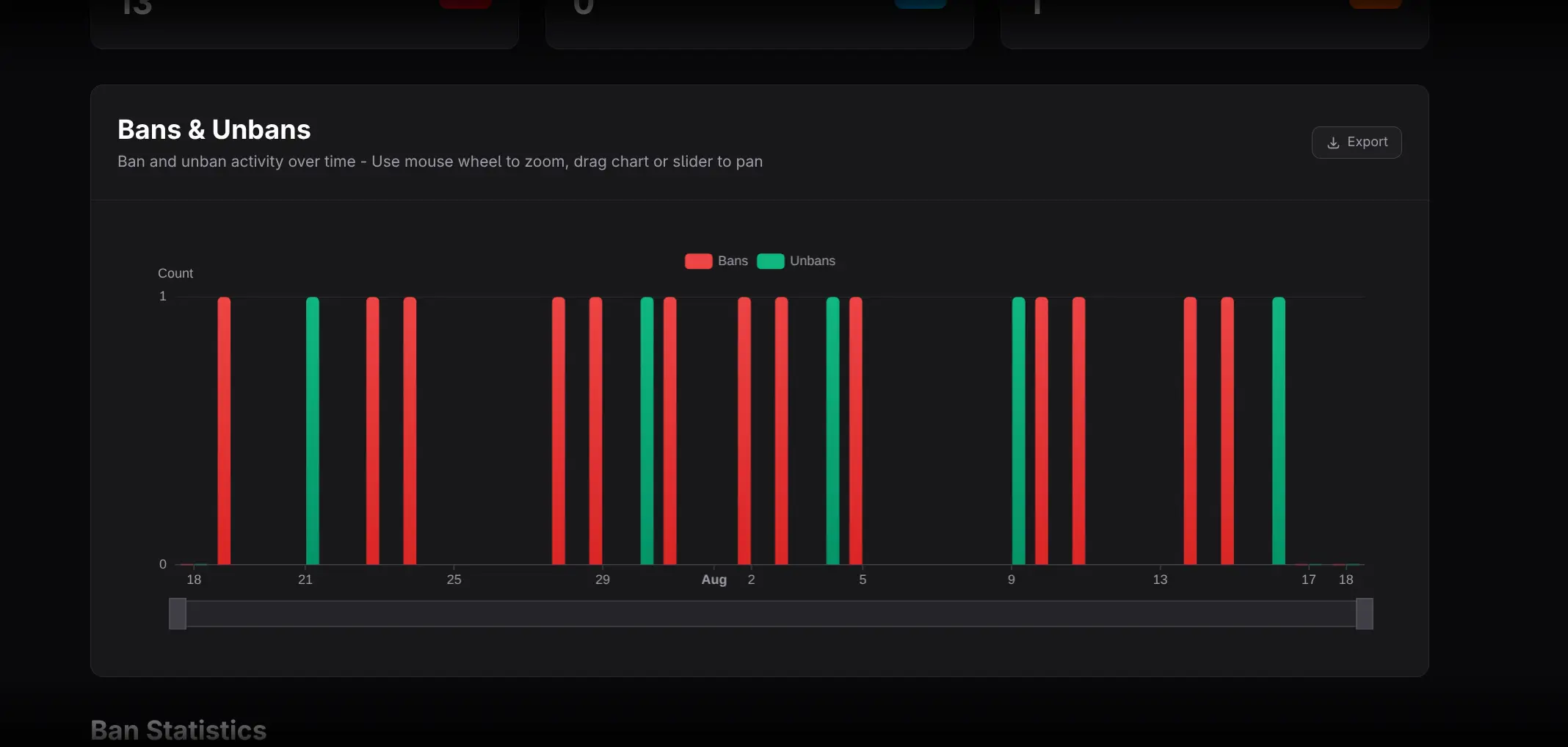
The chart plots red Ban bars and green Unban bars over time.
- Hover to inspect recorded values.
- Zoom or drag to focus on an interval.
- Filter to one moderator when needed.
- Open the event list to verify the members behind a period.
Review leaderboards
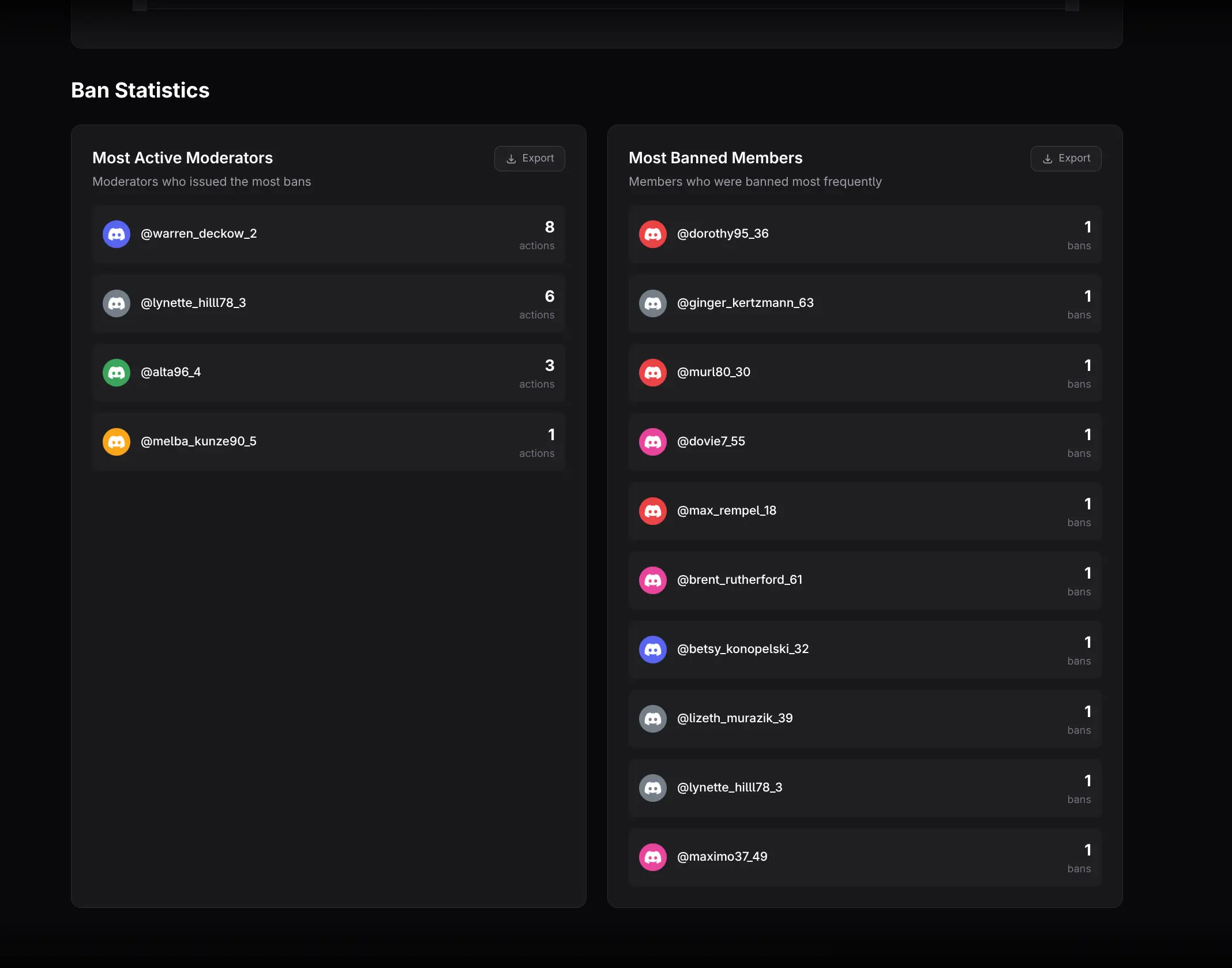
- Most Active Moderators ranks moderators by combined ban and unban action count.
- Most Banned Members ranks affected members.
Use these lists to locate cases for review, not to score moderator quality automatically.
Practical workflows
Investigate an enforcement spike
Narrow the date range, open Total Bans, and identify the affected members and moderators. Compare the same period with Message Moderation and server growth to understand surrounding activity.
Review reversals
Look for bans followed by unbans and inspect the event timing. The report records actions, but not the reason for reversal.
Monitor team workload
Use All Moderators for total demand, then filter by individual. Interpret differences with schedules, permissions, and assigned channels.
Exporting
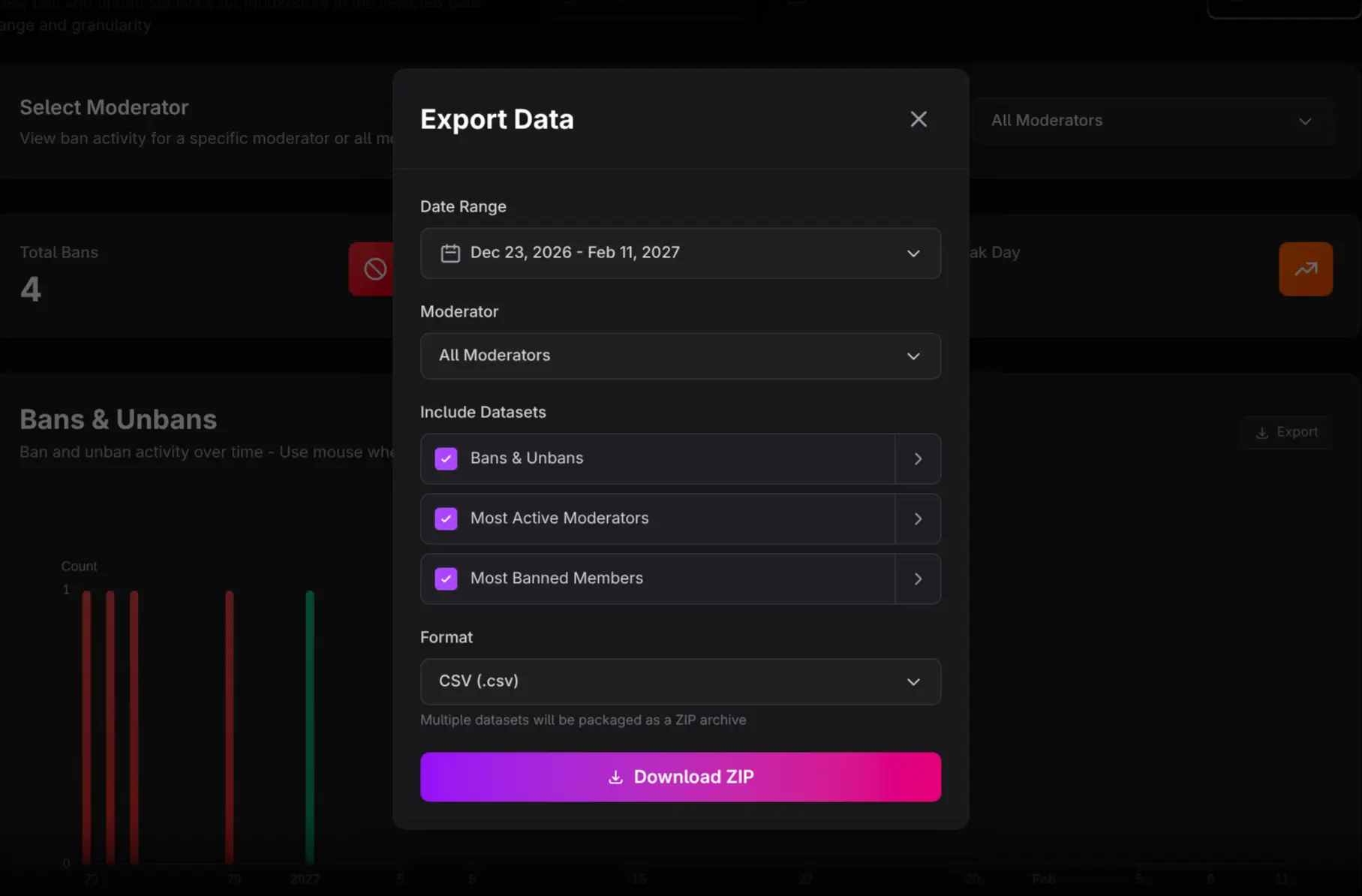
Use Export Data for event and leaderboard datasets or the chart-level Export control for the time series. Select columns, range, moderator, and CSV, Excel, or Google Sheets format.
Important limitations
- The underlying data contains no ban reason or duration field.
- Action count does not measure correctness, severity, or fairness.
- Ghost bars are visual only and excluded from data.
- A member appearing multiple times may represent separate actions or reversals; inspect timestamps before interpreting the pattern.