Activities
Learn how to analyze Discord Rich Presence activities by time, sessions, players, and trend.
The Activities report analyzes Discord Rich Presence activities, including games, applications, and native Discord activity types. It shows which activities are used, how usage changes over time, and how activity popularity differs by time, sessions, or a blended score.
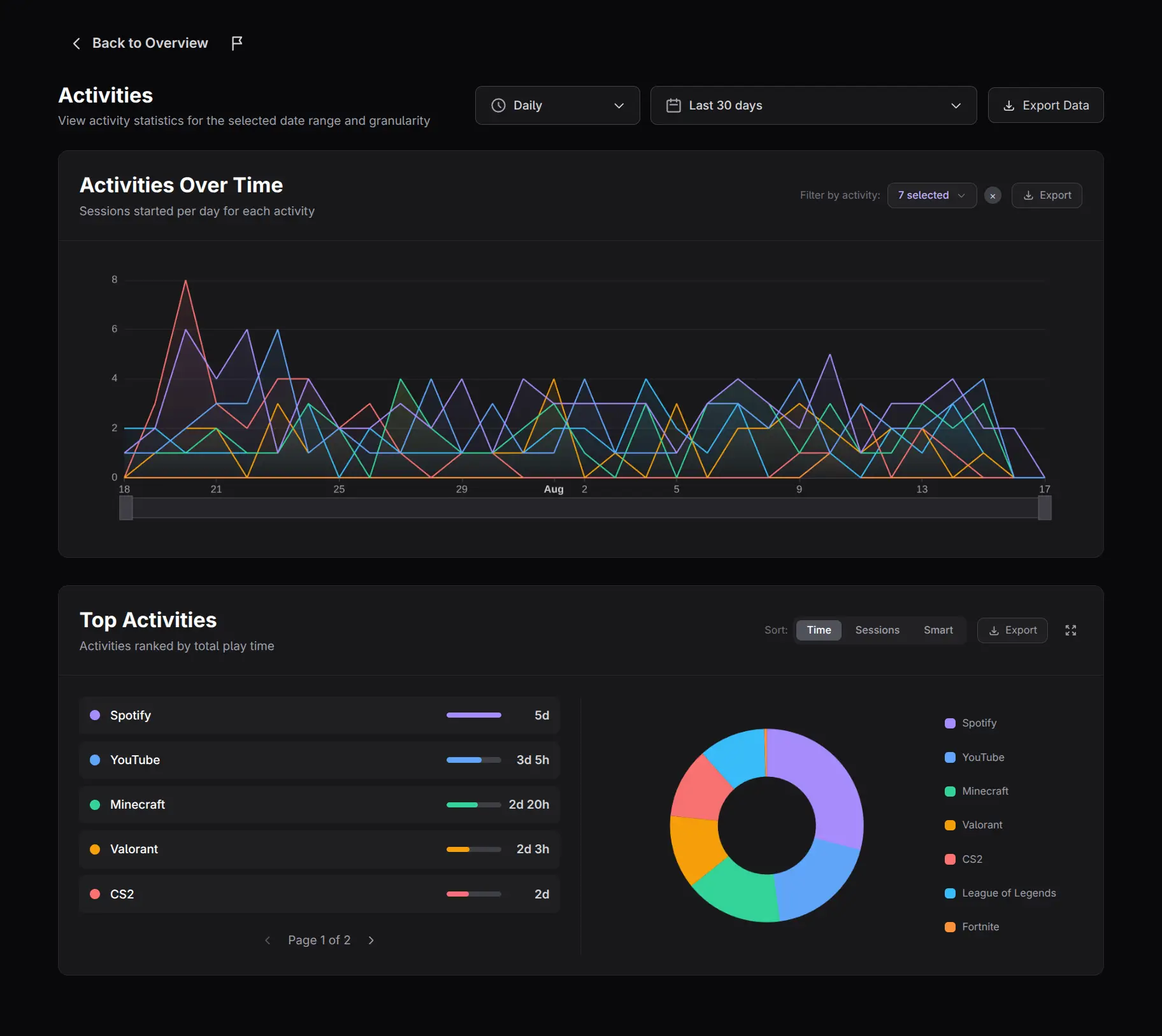
Set the period and granularity
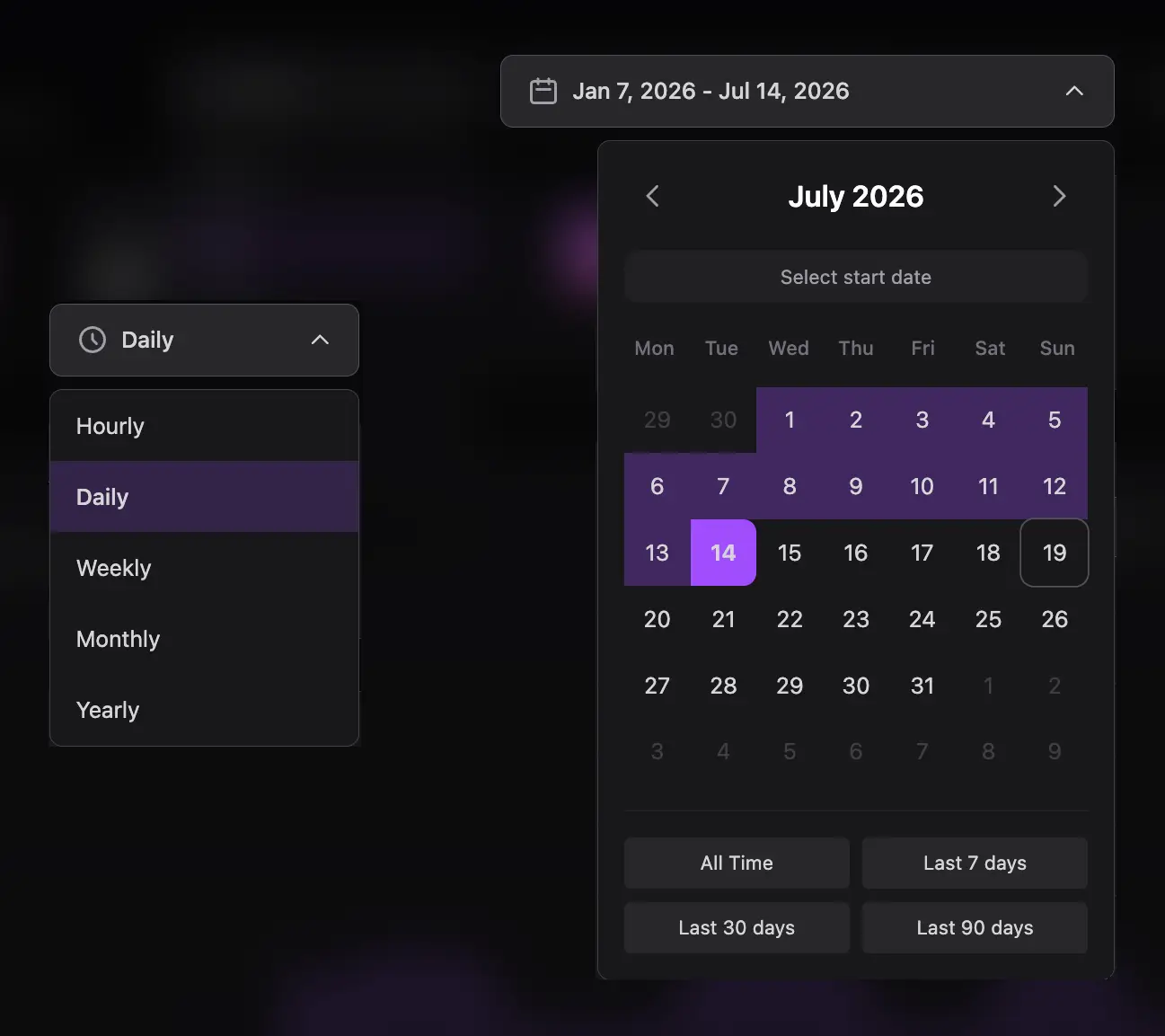
Choose Hourly, Daily, Weekly, Monthly, or Yearly grouping, then select a date range. Short granularities reveal event-level changes; longer groupings make broad adoption patterns easier to see.
Analyze Activities Over Time
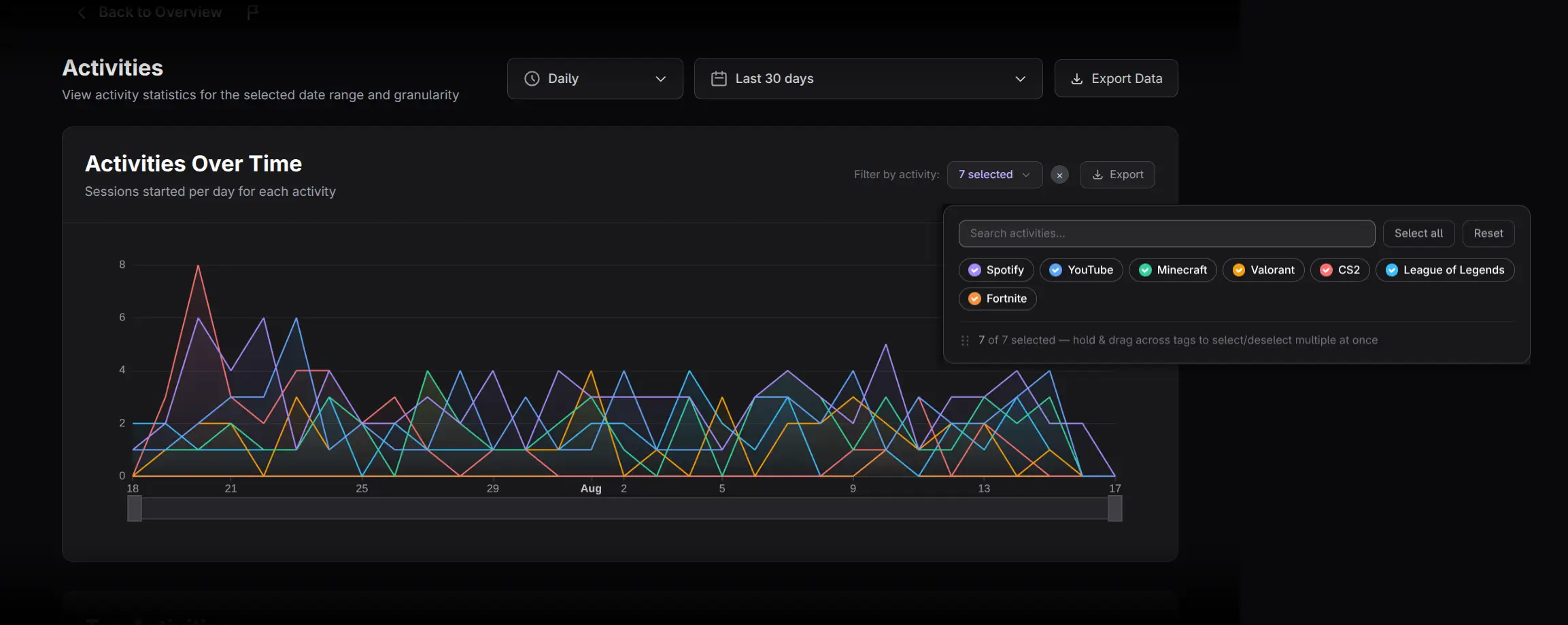
The chart plots one series per activity, with up to the leading ten shown by default.
- Hover to inspect values for a time bucket.
- Use the legend to isolate or compare activities.
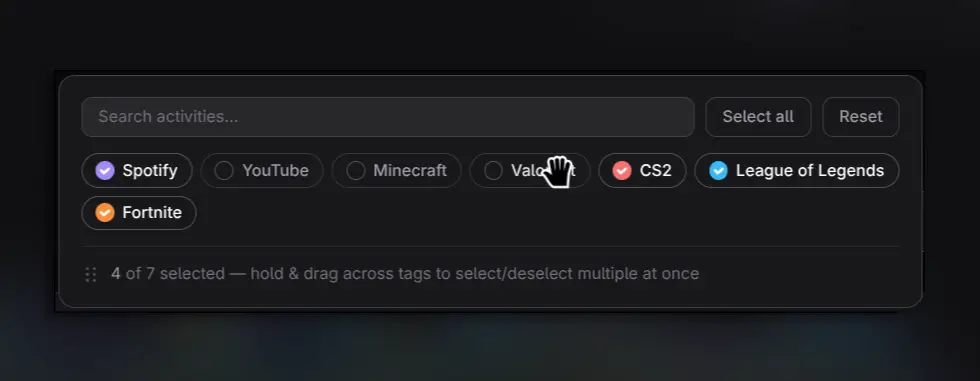
- Open Filter by activity to select multiple activities.
- For long lists, click and drag across the selector to paint-select consecutive items.
- Zoom or pan when the chosen range contains many buckets.
Use this chart to distinguish a sustained activity from a one-time spike.
Compare Top Activities
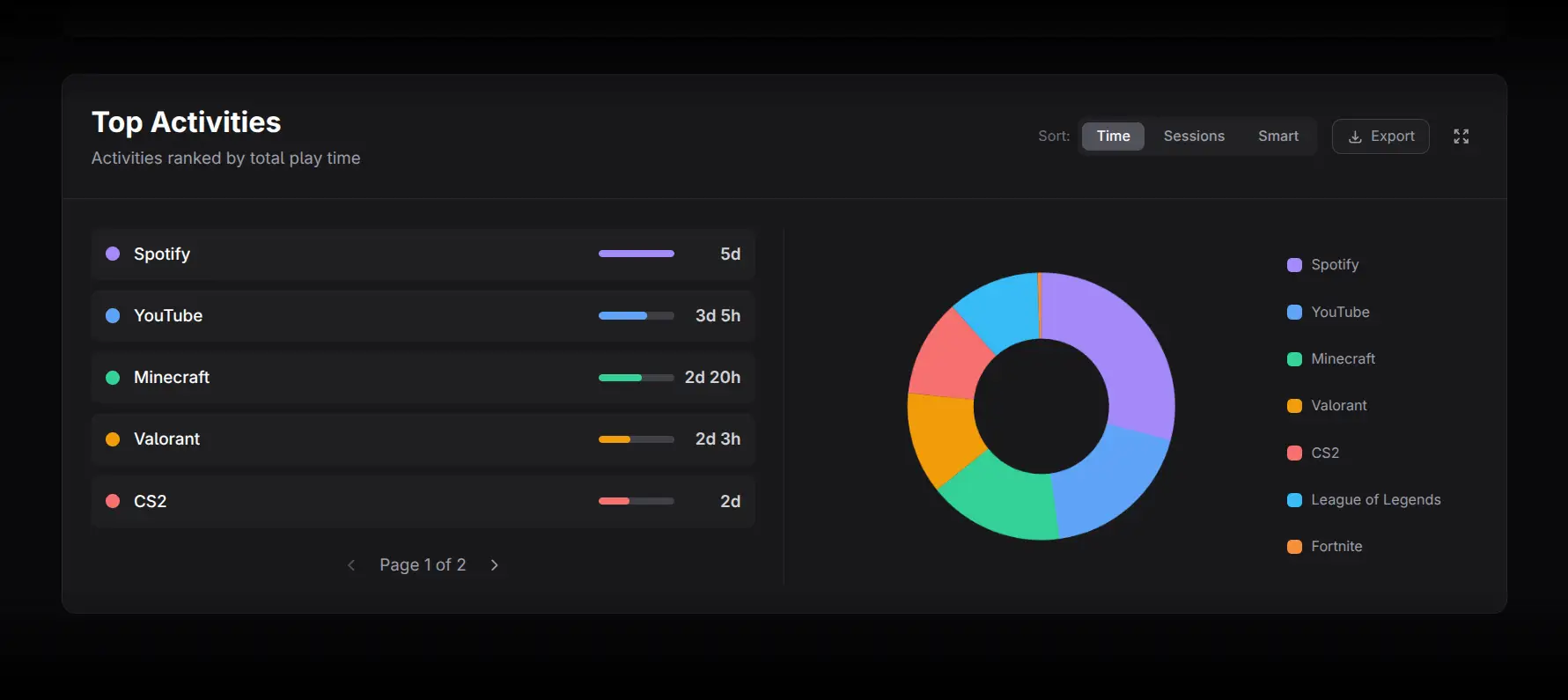
The ranking supports three sorting modes:
- Time: total duration spent in the activity.
- Sessions: number of recorded activity sessions.
- Smart: a weighted combined score.
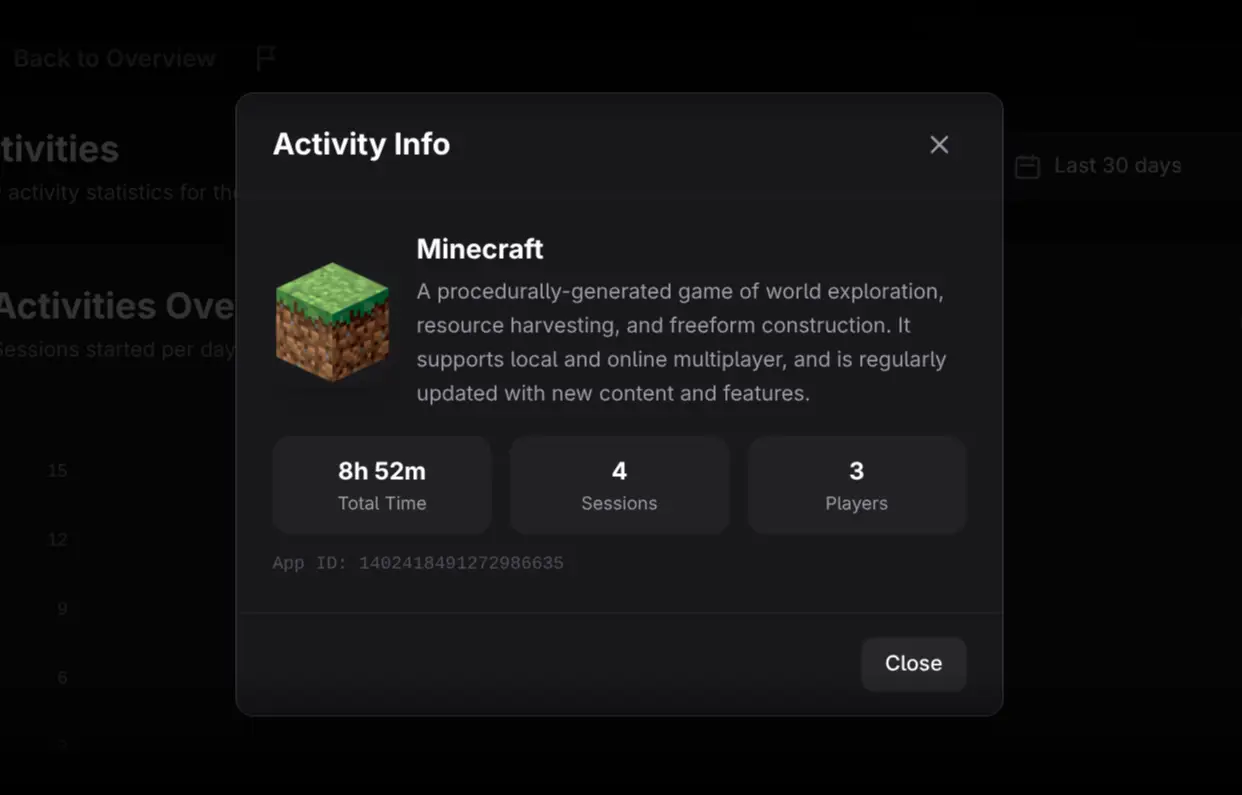
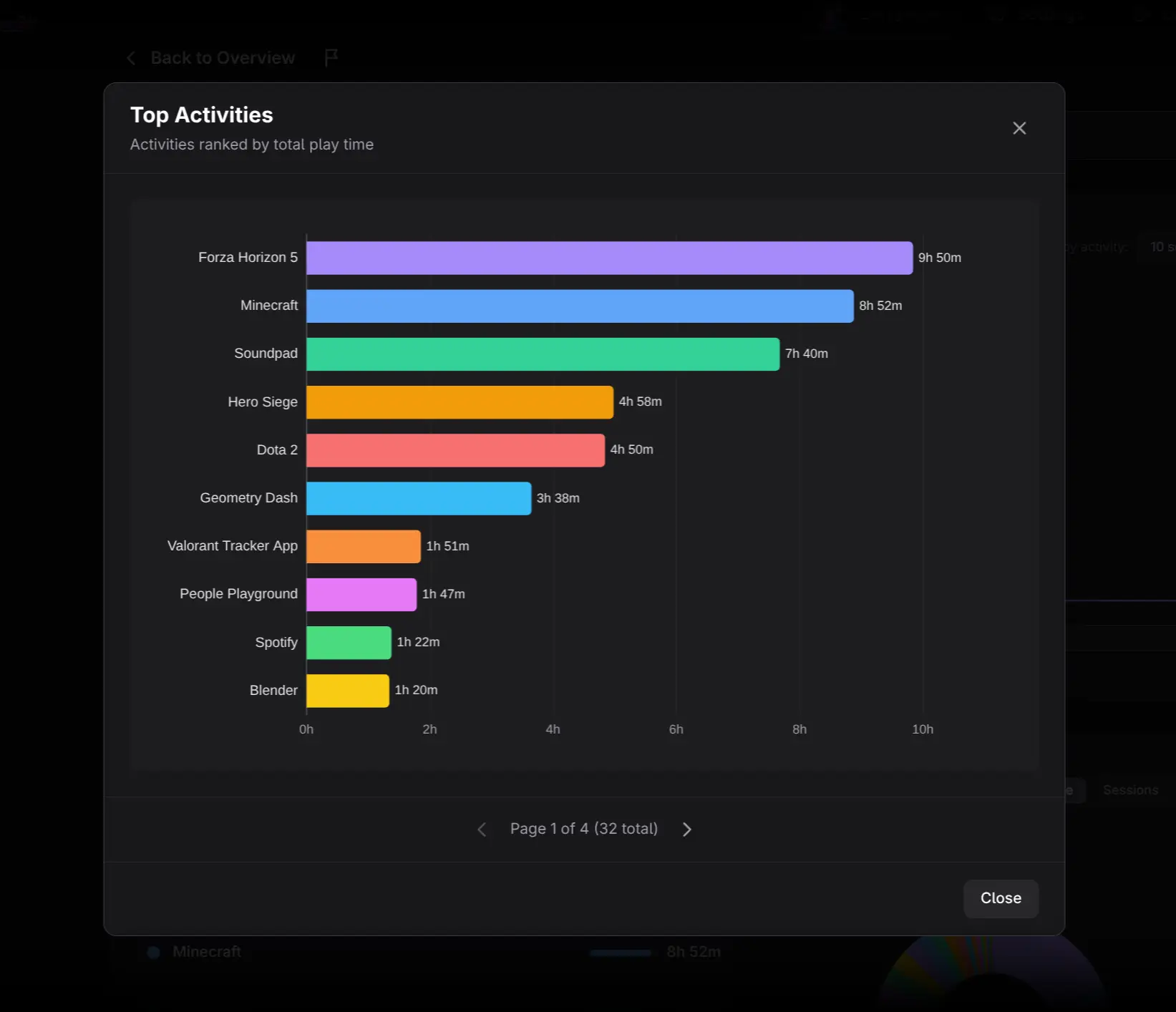
Click an activity to open Activity Info, which can show the app icon, description, total time, session count, and unique players. The information is fetched for the selected activity. Click View All to open a larger horizontal ranking chart; its activity rows remain clickable.
Use Activities Distribution
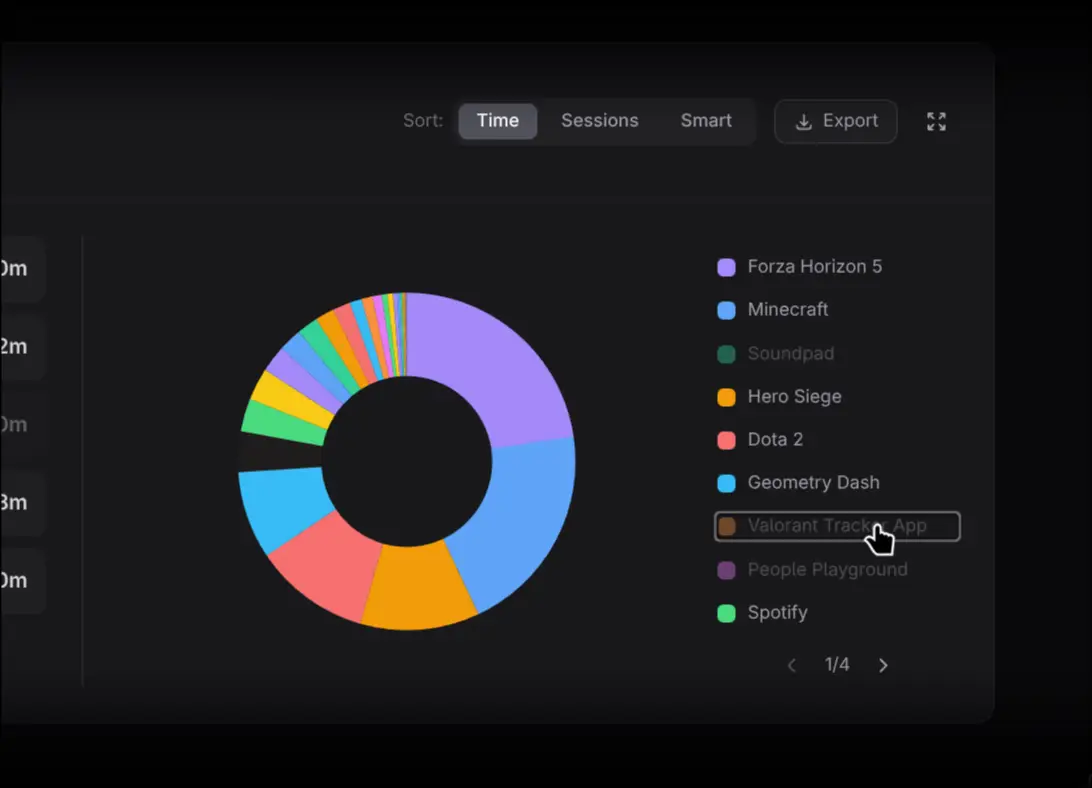
The pie chart shows the share of tracked activity. Click a slice to open Activity Info. Clicking a legend item only dims or restores that slice; it does not open details.
Practical workflows
Plan a community event
Rank by Time to find deep engagement and by Sessions to find repeated use. Check whether the activity is still trending, then compare with Activity Breakdown to identify participants.
Detect fragmented interest
If the distribution contains many small activities, avoid assuming that the top activity represents the whole community. Use filters to compare related groups and consider multiple event formats.
Evaluate an activity campaign
Set the campaign window, isolate the promoted activity, and compare its sessions, time, and unique players with the period before it. A session increase without unique-player growth may indicate more use by the same people rather than broader adoption.
Exporting
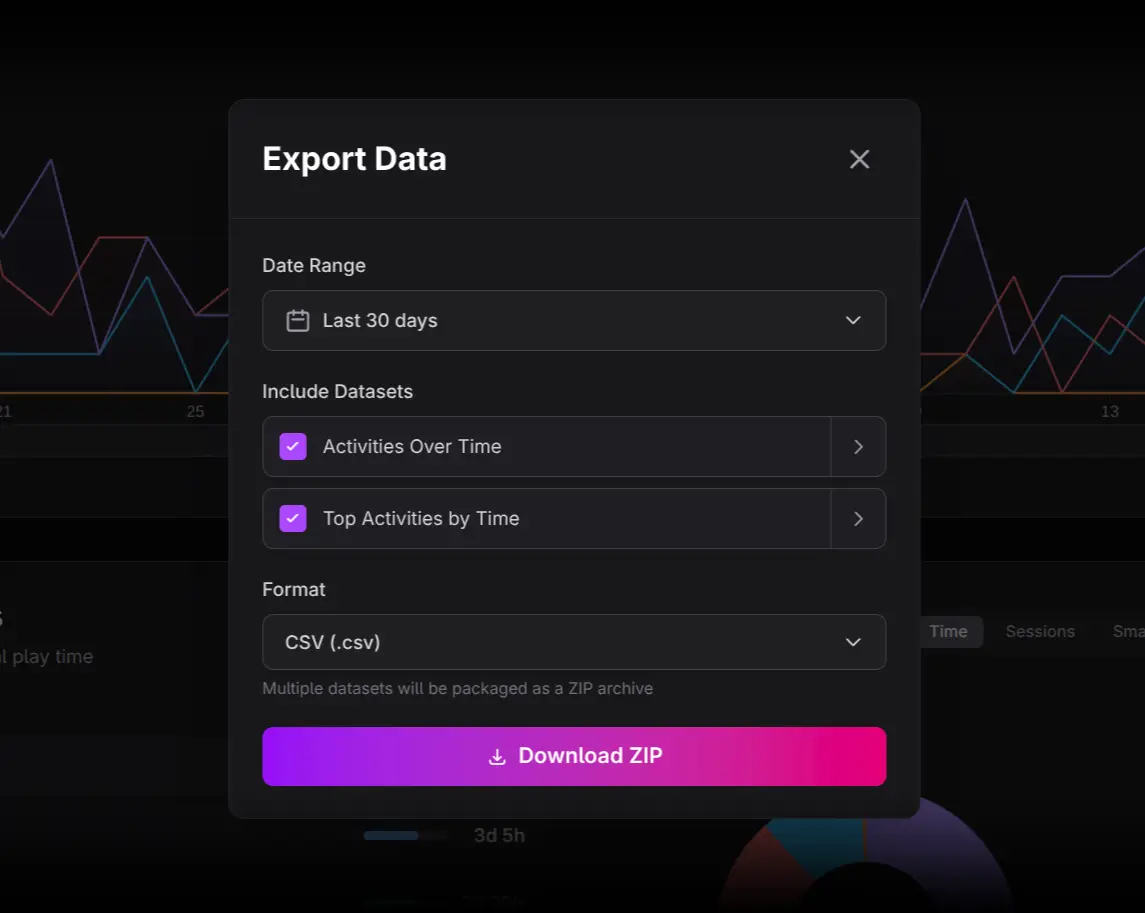
Use Export Data for multiple activity datasets or section-level Export buttons for one chart or ranking. Select columns, date range, and CSV, Excel, or Google Sheets output.
Interpretation cautions
- Rich Presence must be available for an activity to be recorded.
- Time, sessions, and unique players answer different questions.
- Smart is a weighted ranking, not an objective definition of value.
- An empty range may mean no recorded Rich Presence activity, not that members were absent from Discord.