Insights
Learn how to customize, sort, and filter the all-time member analysis table.
The Insights report is an all-time, member-level analysis table. Use it when you need to find specific member segments, compare engagement dimensions, or move from a server-wide pattern to individual accounts.
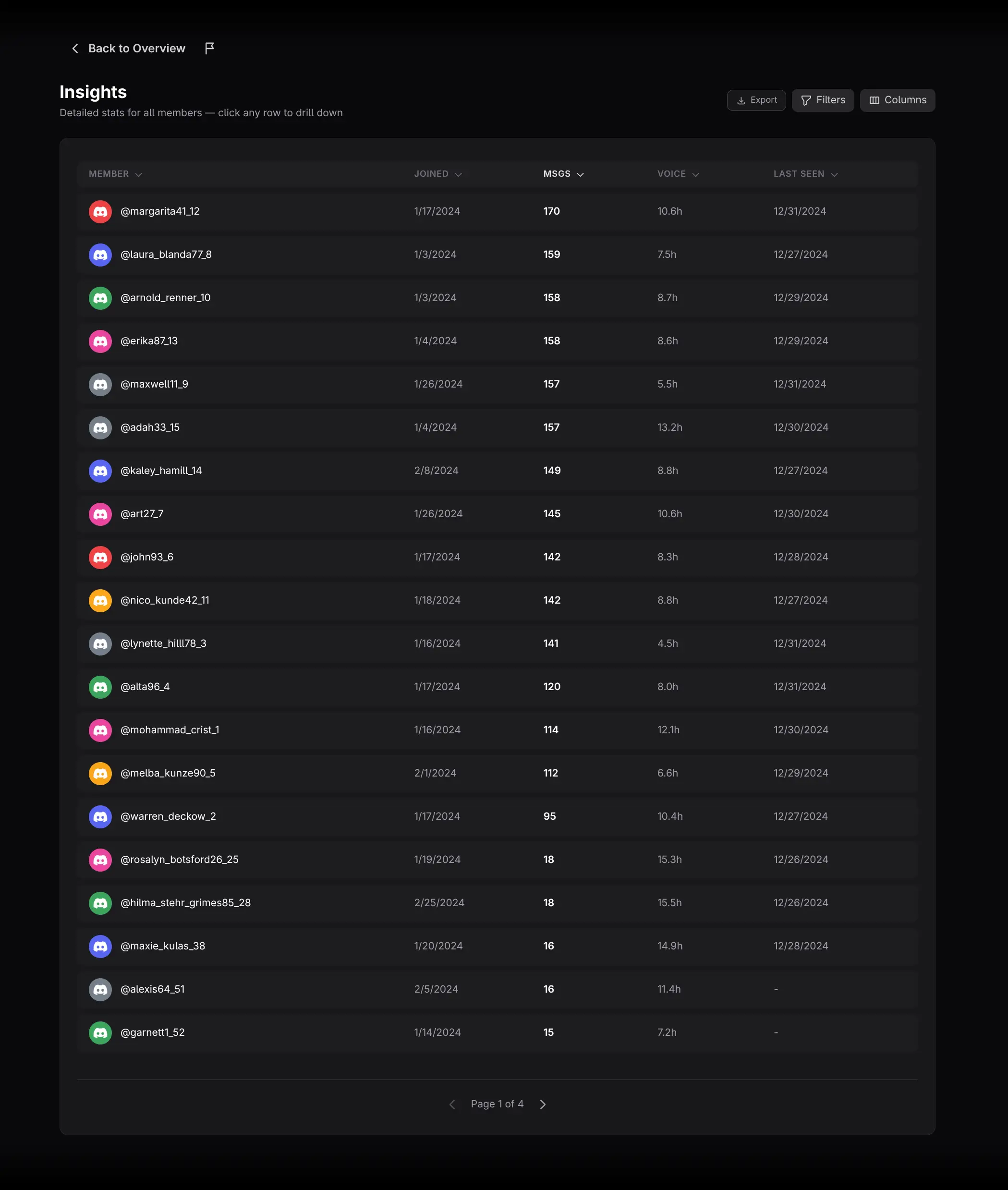
What the table contains
Each row represents one member. Available fields include Messages, Days Chatted, Preferred Channel, Voice Hours, Voice Channel Sessions, weighted Presence Score, Last Seen, and Inviter, together with core member information.
There is no date-range picker. All metrics are calculated across the available lifetime history.
Customize the table
Show or hide columns
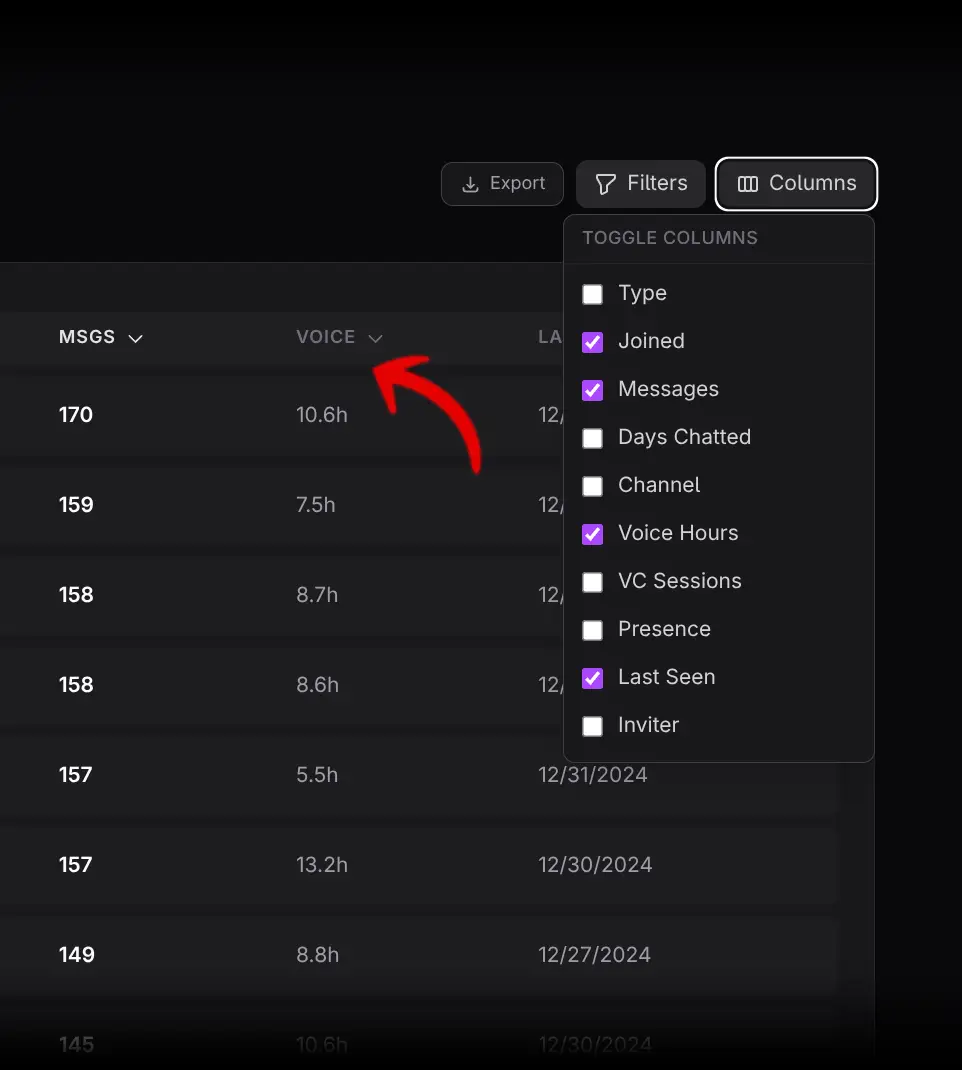
- Click Columns.
- Select the fields needed for the current question.
- Hide unrelated fields to make comparison easier.
Column visibility changes the on-screen table, not the underlying data.
Sort members
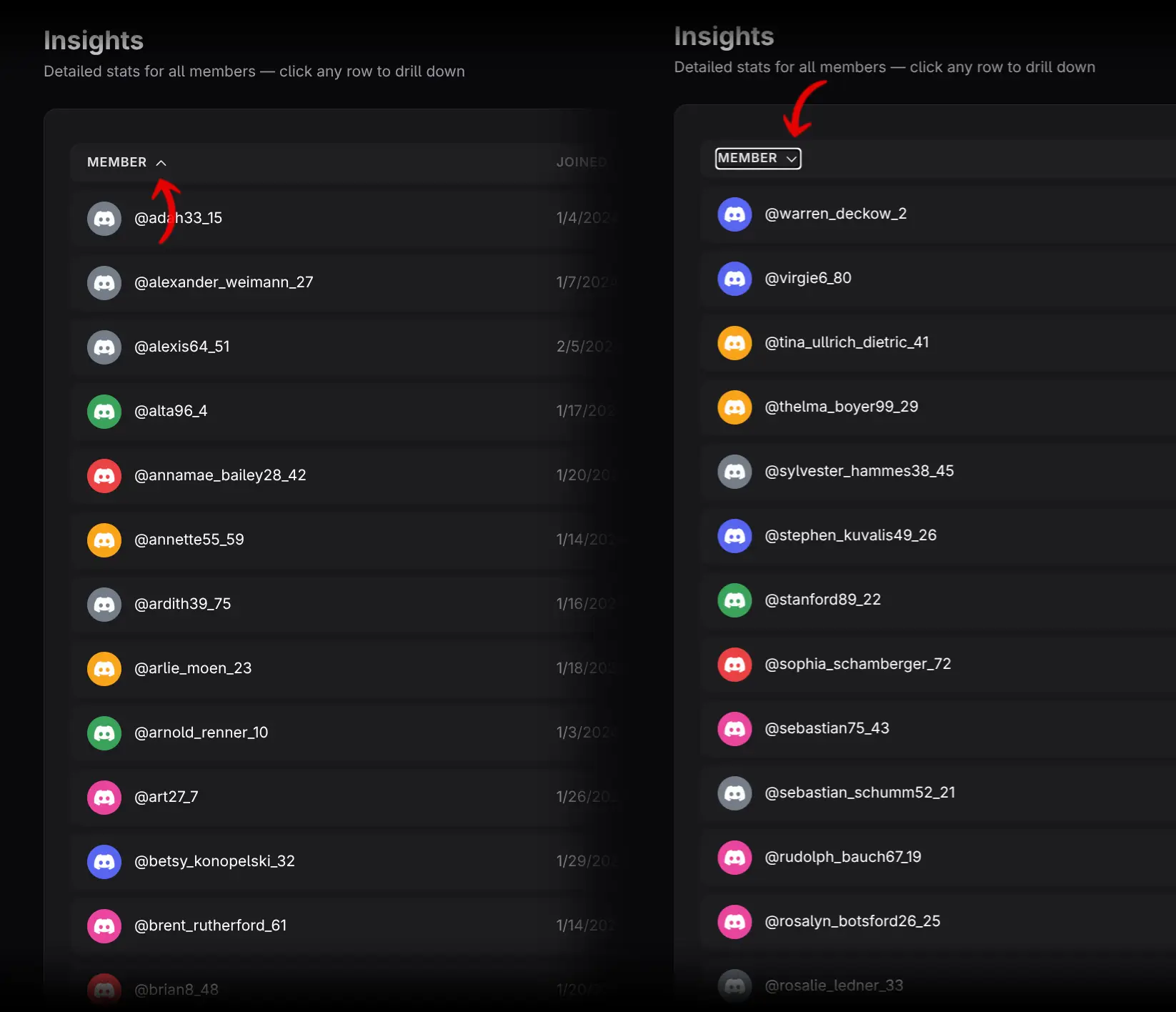
Click a column heading to sort by that field. Click it again to reverse the direction. Examples:
- Sort Messages descending to find high-volume chatters.
- Sort Last Seen ascending to identify long-absent members.
- Sort Voice Hours descending to find voice-first participants.
Build filters
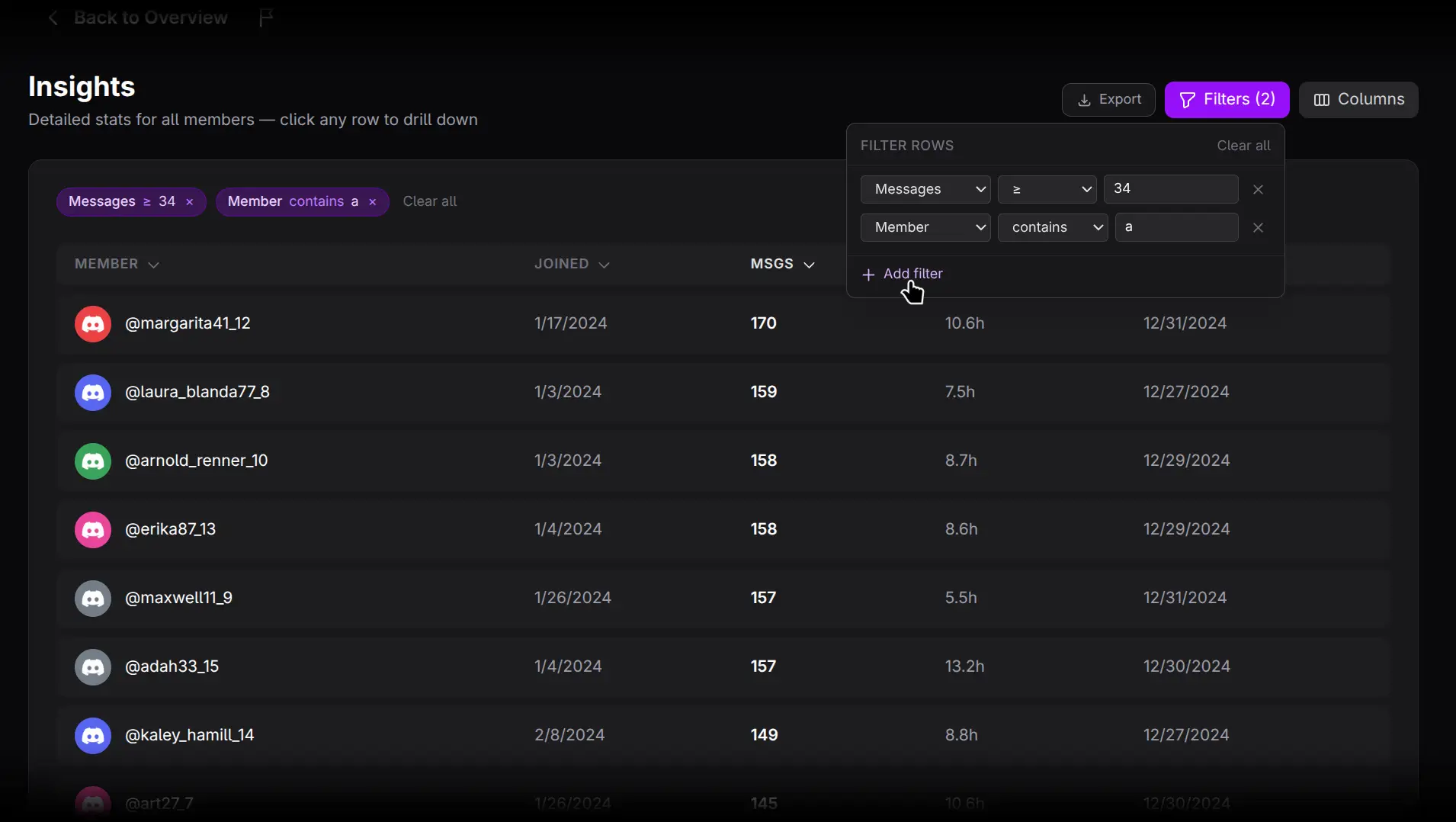
- Click Filters.
- Choose a column.
- Choose an operator appropriate to the field.
- Enter the comparison value or range.
- Add more rules as needed.
Rules are combined with AND, so a member must satisfy every active condition. Text fields support contains, is, starts with, and ends with. Numeric fields support equality, inequality, greater/less comparisons, and between. Date fields support on, before, after, and between. Active rules appear as removable chips; use Clear all to reset them.
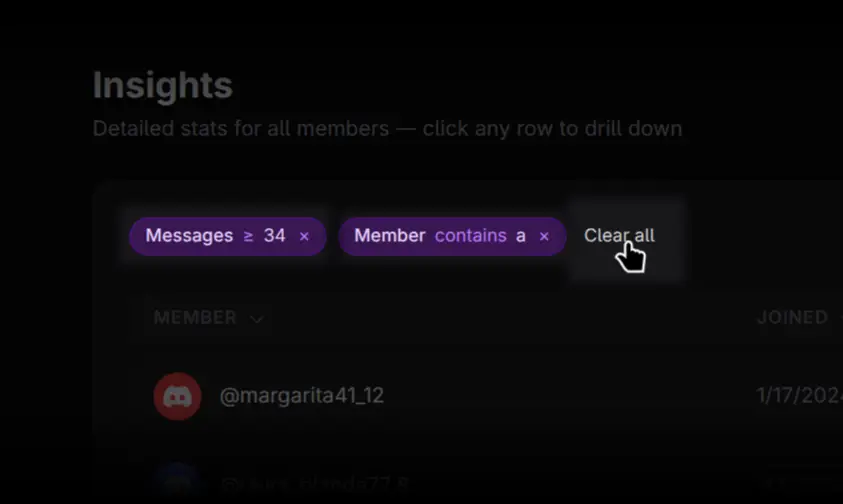
Open a member
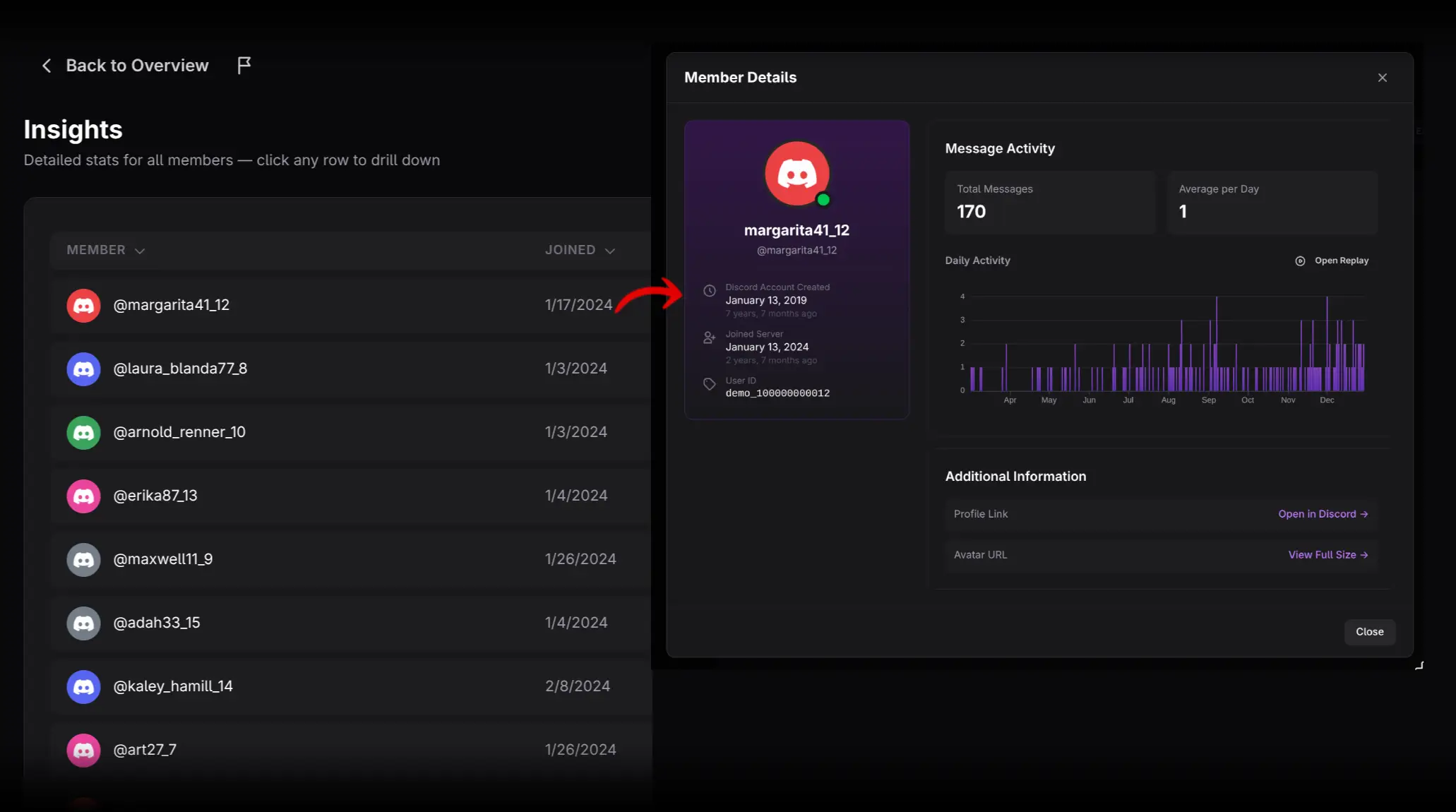
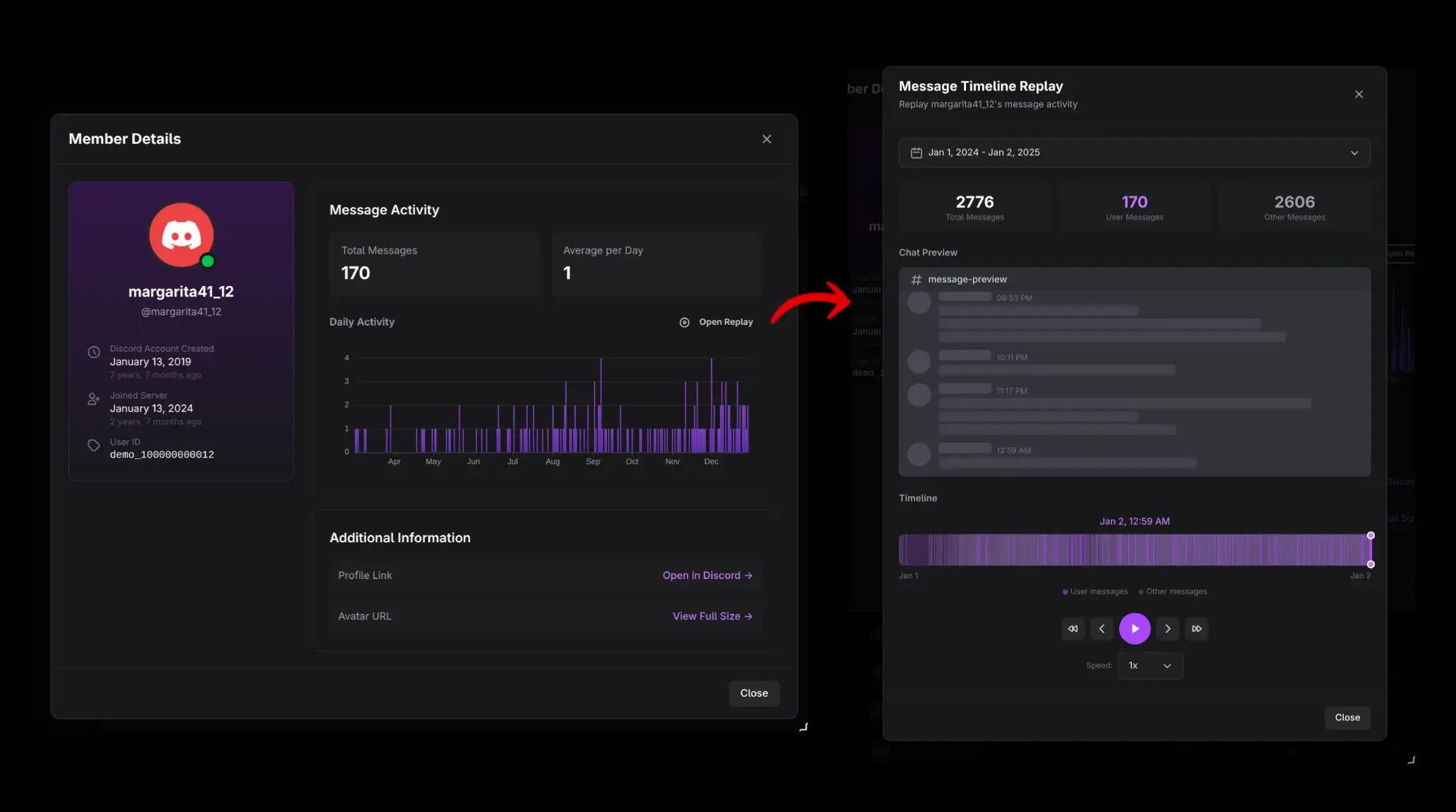
Click any row to open Member Details in message context. The modal includes profile information, message totals, average messages per day, a daily histogram, and access to privacy-preserving Message Replay. Message Replay shows timing and authorship but never renders message text.
Useful segments to create
Highly present but quiet
Filter for a high Presence Score and low Messages. These members may be reachable but not contributing in chat. Compare their Voice Hours before labeling them inactive.
Voice-first members
Filter for high Voice Hours and low Days Chatted. This can reveal audiences that participate primarily in calls.
At-risk established members
Combine an older Joined date with a Last Seen date before a chosen threshold. Review the result before launching re-engagement activity.
Productive invite cohorts
Filter or sort by Inviter, then compare Messages, Voice Hours, and Last Seen. This helps assess invite quality beyond simple retention.
Exporting
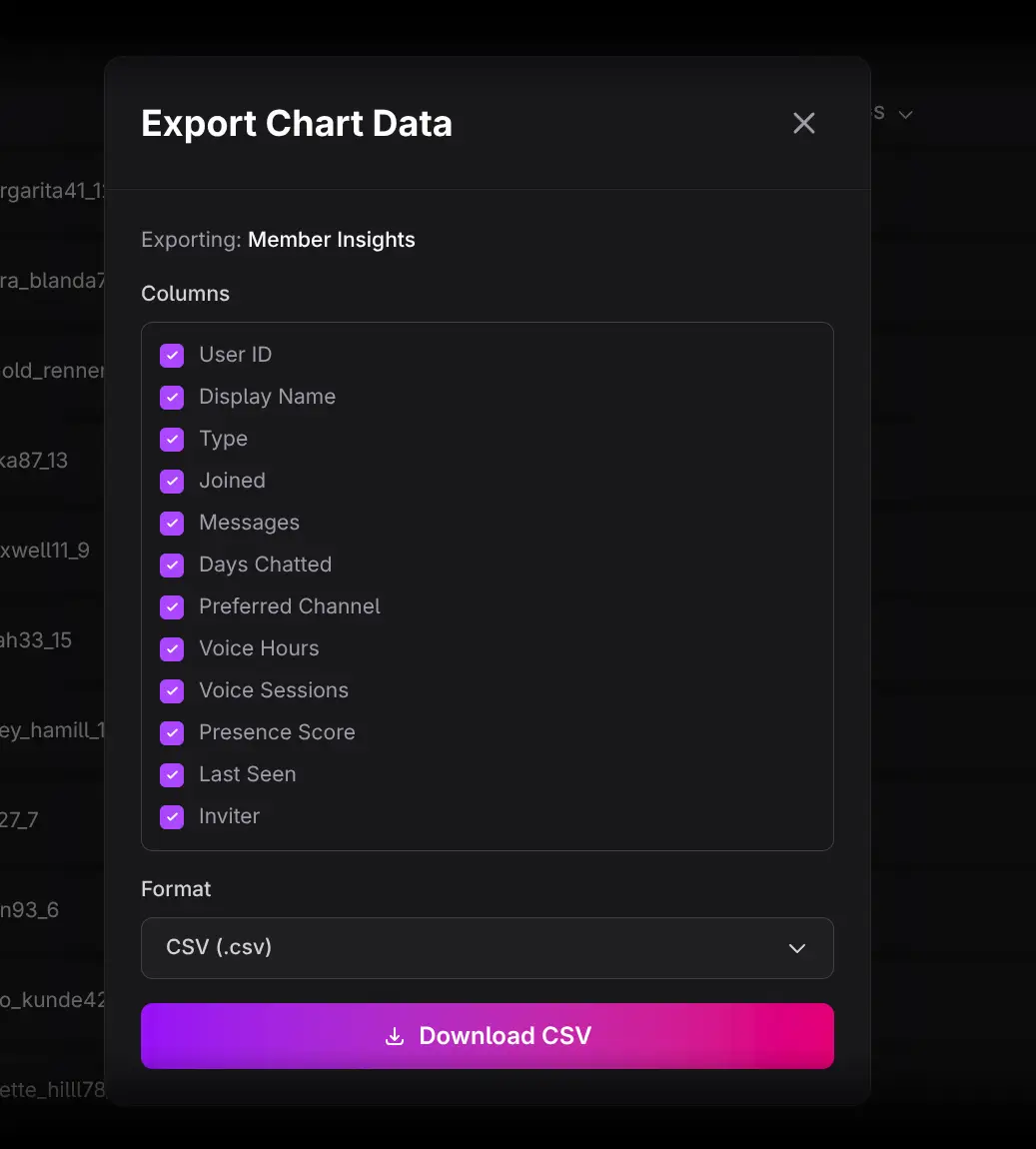
Click Export to download the full member rows. The export is not limited by the current pagination or active filters, so reapply any desired segmentation after export if necessary.
Interpretation cautions
- All-time totals favor members who have been in the server longer.
- Preferred Channel is descriptive, not proof of preference outside recorded behavior.
- Last Seen should be interpreted alongside message, voice, and presence history.
- Multiple AND filters can unintentionally produce a very narrow or empty segment.