Activity Timeline
Learn how to read the per-member message activity matrix and drill down into individual periods.
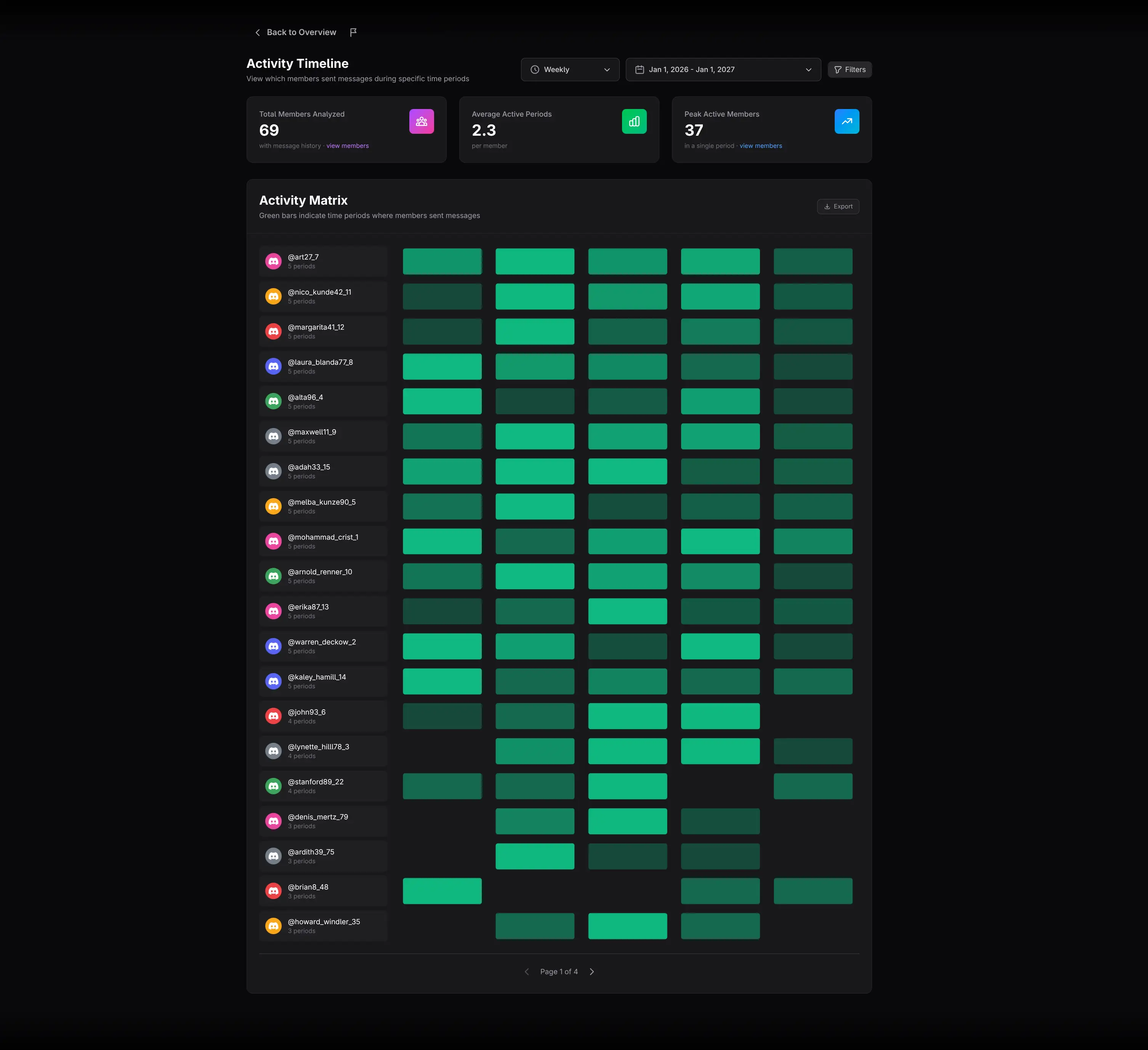
The Activity Timeline report shows when each member was active, not only how many messages the server received. It displays a period-by-period matrix for up to the 100 most active members.
Configure the matrix
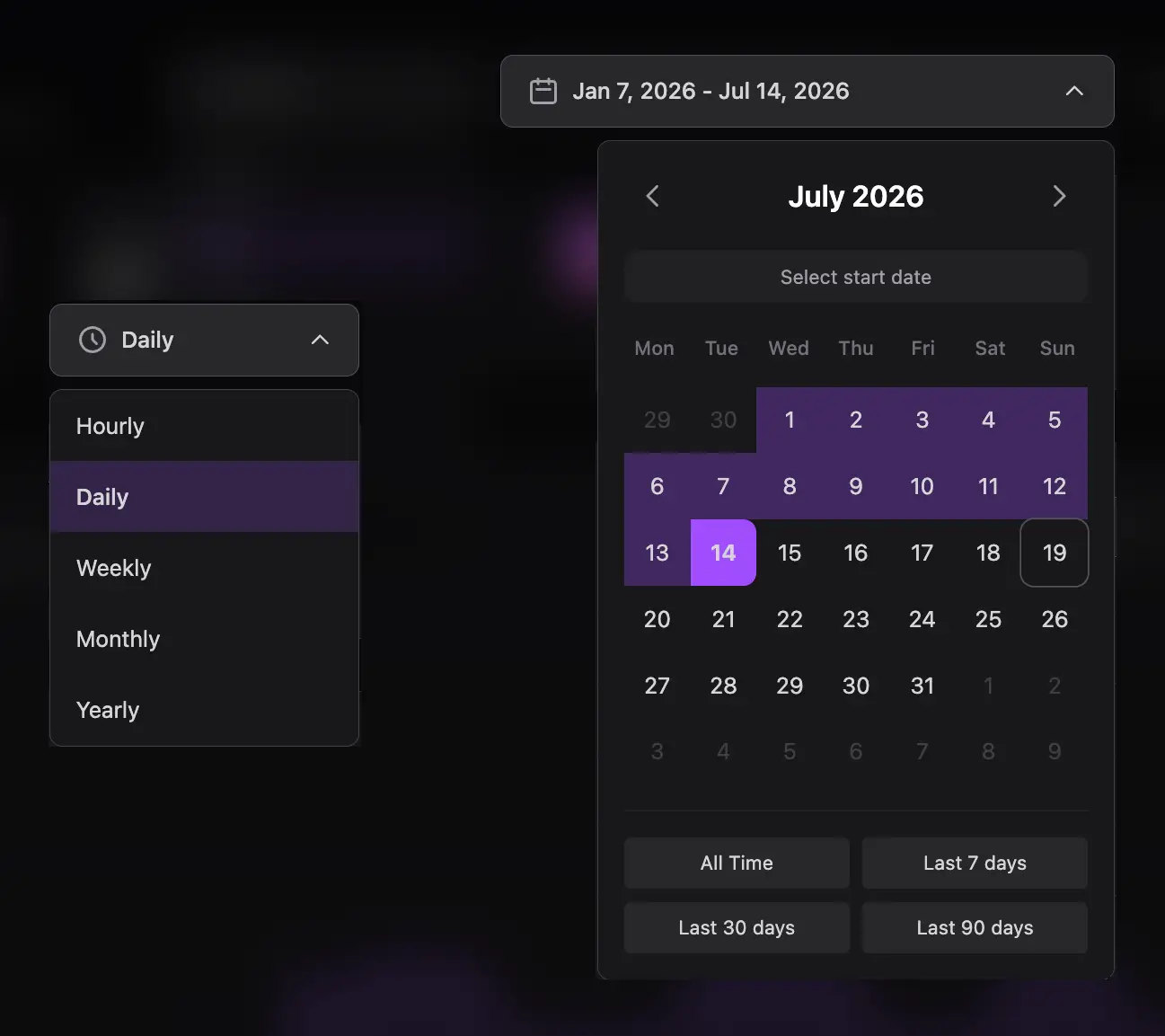
- Select Hourly, Daily, Weekly, Monthly, or Yearly periods.
- Choose the date range.
- Use shorter buckets to inspect detailed behavior and longer buckets to compare consistency over a long history.
Read the summary cards
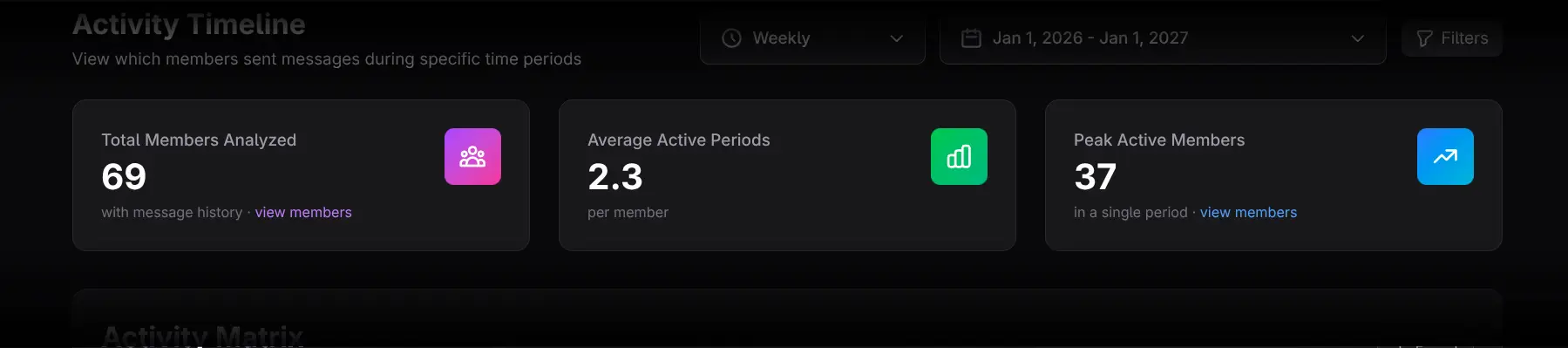
- Total Members Analyzed counts members with message history in the result. Click view members to open the ranking.
- Average Active Periods shows the mean number of periods in which a member sent messages. It has no drill-down; hovering displays an intentionally humorous tooltip.
- Peak Active Members shows the largest number of members active in one period. Click view members to inspect the members who drove that period.
Filter the matrix
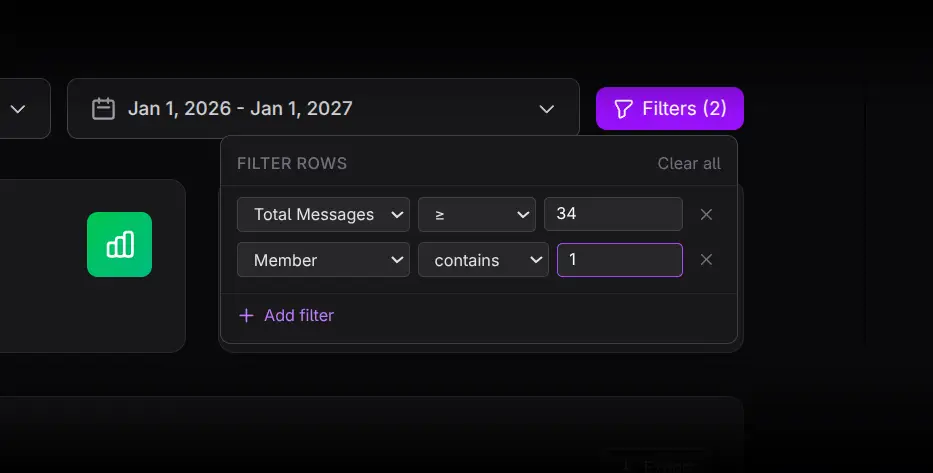
Click Filters to create rules based on member name, active-period count, total messages, or peak messages. Multiple rules use AND logic. Active filters narrow the members shown without changing the meaning of each period bar.
Read the Activity Matrix
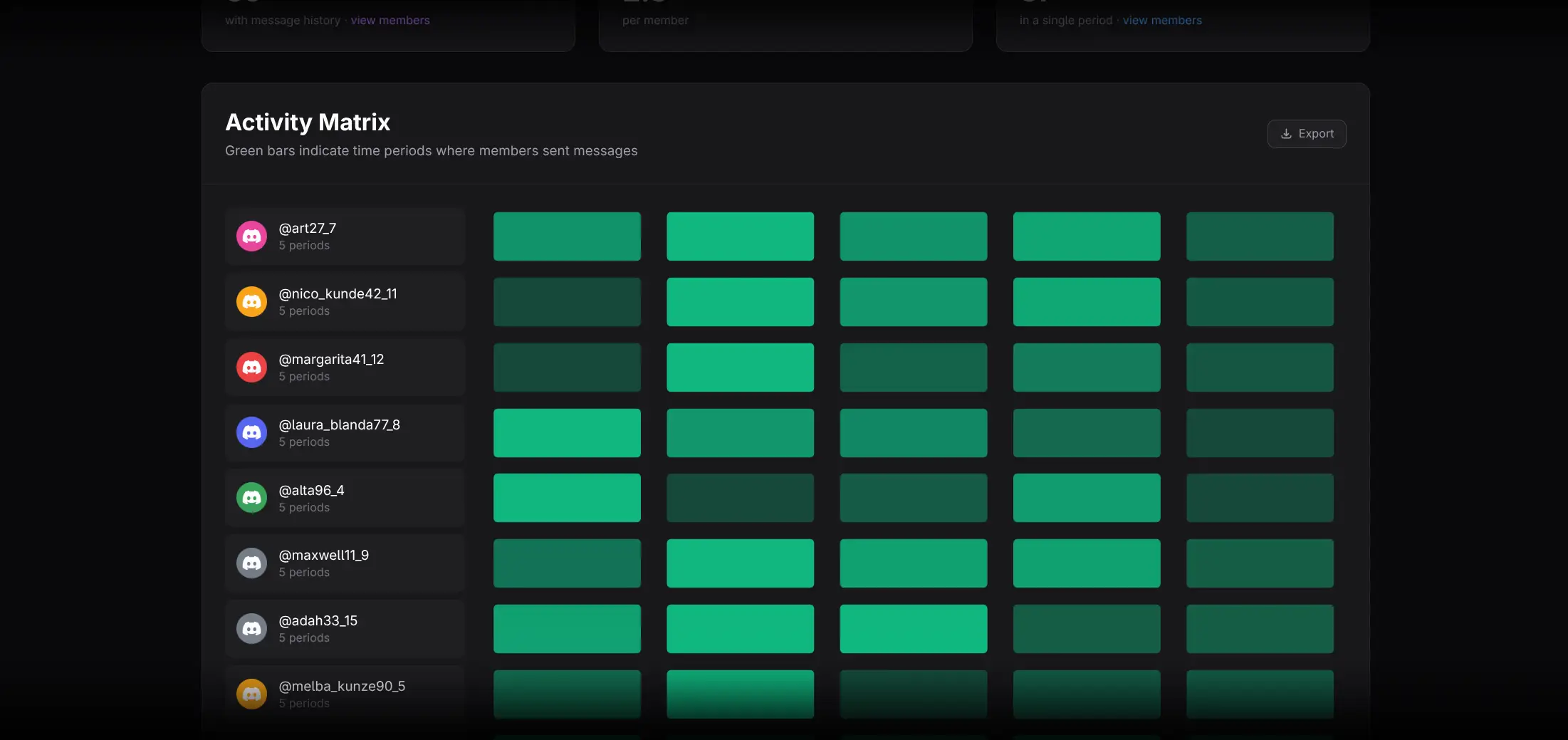
Each row contains a member and a strip of bars, one per time period. Bar intensity is scaled relative to that member's own peak, so it is best for reading an individual's pattern. Equal-looking bars in two different rows do not necessarily represent equal raw message counts.
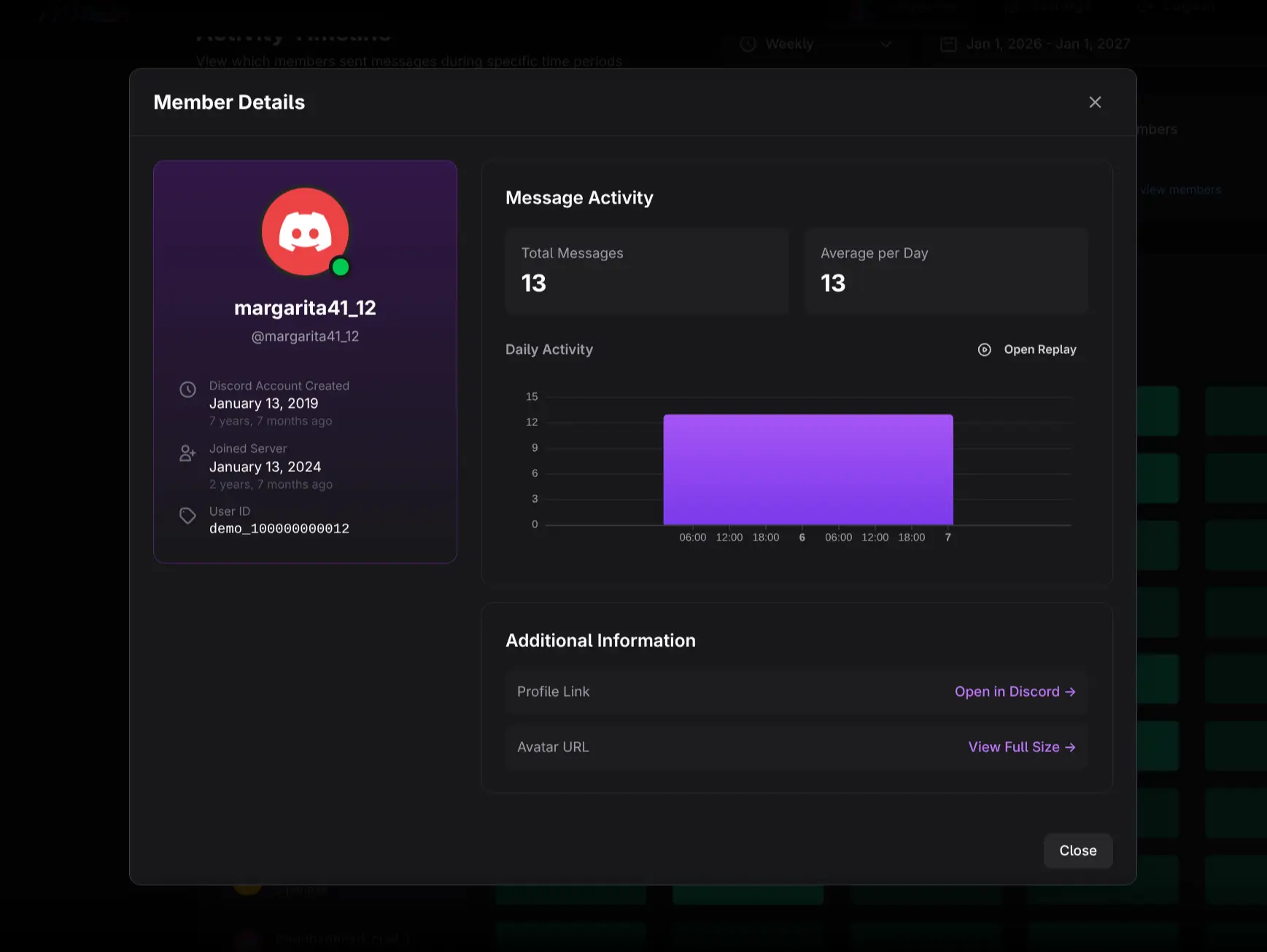
- Click a member's avatar or name to open Member Details for the full selected range.
- Click one individual period bar to open the same member scoped to that period.
- Use the back arrow in Member Details to return to the matrix.
Practical workflows
Find consistent contributors
Use Weekly periods across several months. Look for rows with activity spread across many periods rather than concentrated in one burst. Confirm the result with Activity Stability, which explicitly measures returning chatters.
Investigate a campaign or event
Use Daily or Hourly periods around the event. Click the strongest bar for a relevant member to inspect that exact segment.
Identify re-engagement candidates
Filter for members with meaningful total messages but a low active-period count in the selected range. The pattern may show formerly valuable members whose participation has become intermittent.
Exporting
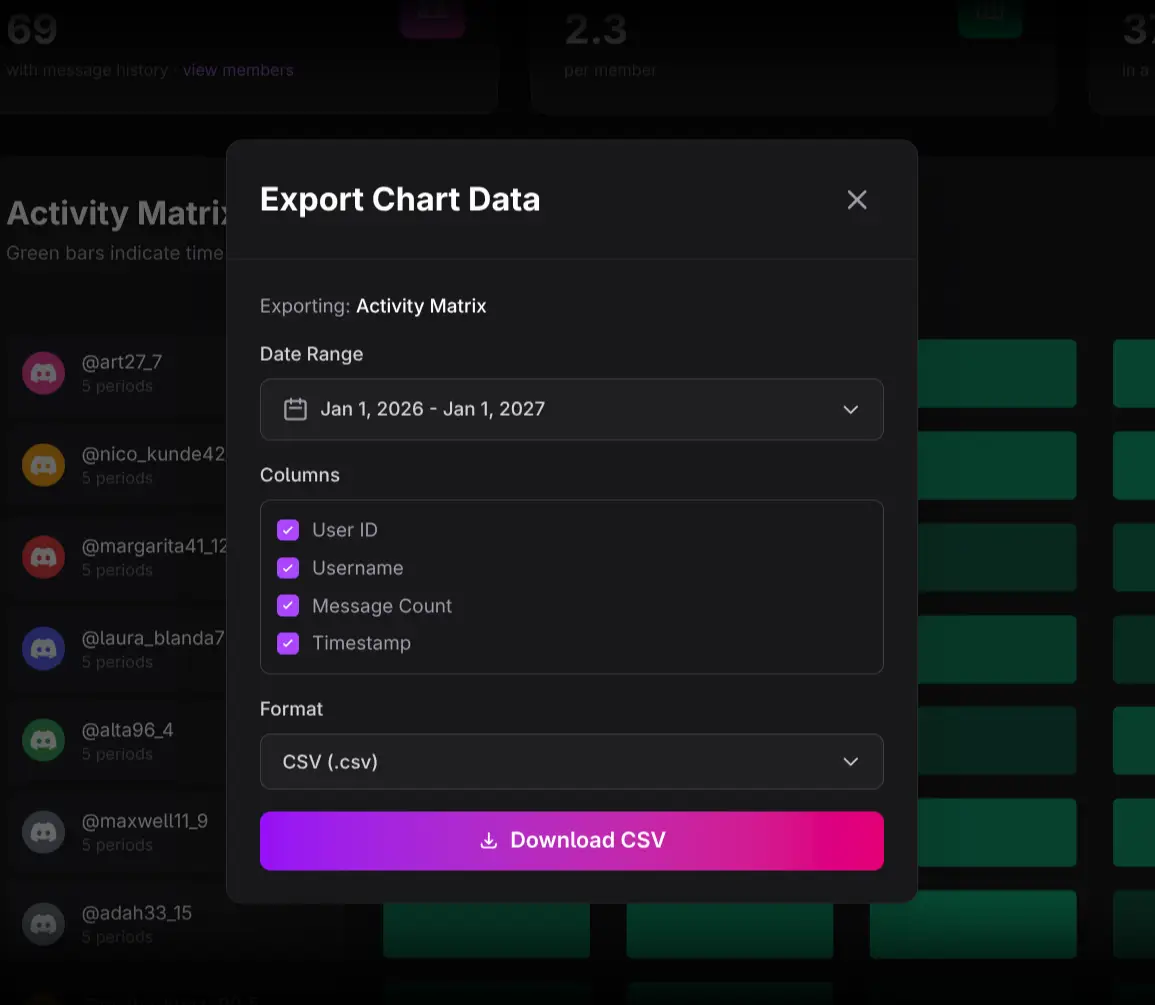
Use the Activity Matrix Export control to download member-period activity. Choose the date range, columns, and format in the export dialog.
Interpretation cautions
- The matrix is limited to the top 100 members by activity.
- Opacity is normalized within each member's row.
- An active period means at least one recorded message; it does not describe message quality.
- Average Active Periods is descriptive and has no drill-down.